> For the complete documentation index, see [llms.txt](https://book.rochat.ai/rochat_book_en/llms.txt). Markdown versions of documentation pages are available by appending `.md` to page URLs; this page is available as [Markdown](https://book.rochat.ai/rochat_book_en/how-to-create-a-character-on-rochat/create-character-method-1-custom-creation/auto-memory.md).

# Use Memory in your conversations

Use notes and summaries to keep important conversation details, and understand what Rochat Memory can and cannot retain.

Read this guide in: [English](https://book.rochat.ai/rochat_book_en/how-to-create-a-character-on-rochat/create-character-method-1-custom-creation/auto-memory) · [繁體中文](https://book.rochat.ai/rochat_book_zh/ru-he-zai-rochat-shang-chuang-jian-jue-se/jue-se-she-ji-fang-fa-yi-shou-dong-jian-li/zi-dong-ji-yi) · [日本語](https://book.rochat.ai/rochat_book_ja/rochatdekyarakutwosuru/kyarakut-1shii/tomemor) · [Español](https://book.rochat.ai/rochat_book_es/como-crear-un-personaje-en-rochat/como-crear-un-personaje-en-rochat/memoria-automatica) · [한국어](https://book.rochat.ai/rochat_book_kor/rochat/1/undefined-9)

Memory helps keep important information available within a conversation. It is separate from the full visible chat history, your Persona and a character's Lorebook. It does not guarantee perfect recall of every message.

## Read the Memory panel

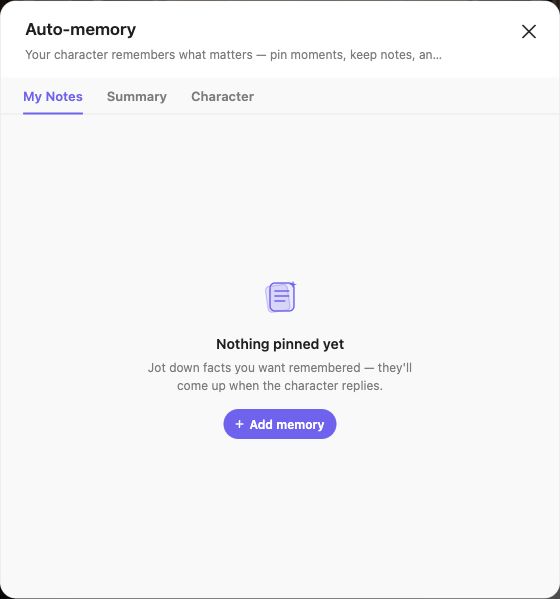
On Web, open **Memory** from the conversation controls. If the panel shows an upgrade prompt, review the entitlement displayed before trying to edit it. Where the full panel is available, it separates three kinds of information:

| Tab       | What to use it for                                           |
| --------- | ------------------------------------------------------------ |
| My Notes  | Facts you deliberately add or preserve from messages.        |
| Summary   | A condensed account of the conversation so far.              |
| Character | Character-related memory shown as the conversation develops. |

<figure><img src="https://files.gitbook.com/v0/b/gitbook-x-prod.appspot.com/o/spaces%2F4aMKN1uyxi8aJ6oPNmVQ%2Fuploads%2FUgj7LuNX9PgInE7sI7dR%2Fen-memory-tabs.jpg?alt=media&#x26;token=5c786fa0-93c5-4869-8f47-676d4be9e9f4" alt="Memory tabs and add-memory control"><figcaption><p>Memory separates My Notes, Summary and Character. Add a memory from the notes tab.</p></figcaption></figure>

An empty summary in a new conversation does not mean the feature is broken. A summary needs conversation material and may appear or change later.

## Add a note that helps future replies

1. Open the correct conversation and its Memory panel.
2. Choose **My Notes**, then **Add memory**.
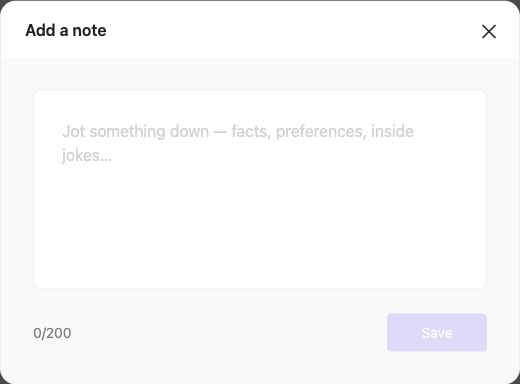
3. Write one concrete fact. The current Web note editor counts characters and allows up to **200 characters** per note. Choose **Save**, then check that the note appears in this conversation. If another version shows a different counter, follow that editor's limit.
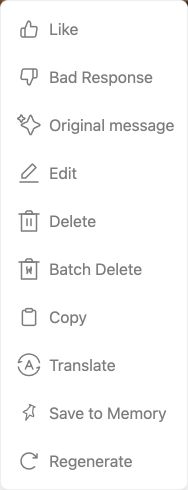
4. On Web, look for **Save to Memory** in the message menu when that action is available. After using it, check the Memory panel for the saved information. Labels and availability can differ on other platforms.
5. Revisit notes when circumstances change. Remove or correct outdated facts rather than keeping conflicting versions.

<figure><img src="https://files.gitbook.com/v0/b/gitbook-x-prod.appspot.com/o/spaces%2F4aMKN1uyxi8aJ6oPNmVQ%2Fuploads%2FO1N8DiDzAPxiHGPQ7PwI%2Fen-memory-add-note.jpg?alt=media&#x26;token=ce4e9454-4b68-400d-a655-bef06404094d" alt="Empty note editor with counter and Save"><figcaption><p>Use the note editor’s counter; Save becomes available after you enter a note.</p></figcaption></figure>

<figure><img src="https://files.gitbook.com/v0/b/gitbook-x-prod.appspot.com/o/spaces%2F4aMKN1uyxi8aJ6oPNmVQ%2Fuploads%2FUXyWQMHEPRF8NexSAhYv%2Fen-message-actions.jpg?alt=media&#x26;token=318a0613-39c4-4e40-b257-d37513da4aa6" alt="Message actions menu"><figcaption><p>Open a message’s menu to see its available actions, including Save to Memory.</p></figcaption></figure>

Useful note:

> Mira lent Rowan the brass archive key. Rowan promised to return it at sunrise.

Less useful note:

> Remember everything and always be realistic.

The first records a fact the next reply can use; the second is an open-ended instruction.

## Check and edit a summary

Read the summary before editing. Correct names, established events and agreements without adding events that never happened. Save the change if your account has that control. Use the field counter for the current editing limit.

Memory can still compete with other instructions and available model context. If the character misses a detail, confirm you are in the right conversation, remove contradictions, and restate the relevant fact naturally in your next message. See [Choose a model and understand context](https://book.rochat.ai/rochat_book_en/how-to-create-a-character-on-rochat/create-character-method-1-custom-creation/model-selection) for context and [Lorebook, Memory and Persona explained](https://book.rochat.ai/rochat_book_en/lorebook) for where different kinds of information belong.

## Related guides

[Chat controls](https://book.rochat.ai/rochat_book_en/chat-controls) · [Choose a model and understand context](https://book.rochat.ai/rochat_book_en/how-to-create-a-character-on-rochat/create-character-method-1-custom-creation/model-selection) · [Lorebook, Memory and Persona explained](https://book.rochat.ai/rochat_book_en/lorebook) · [Limits, entitlements and costs](https://book.rochat.ai/rochat_book_en/limits-and-costs)

## Continue in Rochat (external)

[Open your conversations](https://rochat.ai/rochat)

***

Previous: [Create and switch your Persona](https://book.rochat.ai/rochat_book_en/how-to-create-persona-on-rochat) · Next: [Choose a model and understand context](https://book.rochat.ai/rochat_book_en/how-to-create-a-character-on-rochat/create-character-method-1-custom-creation/model-selection)