> For the complete documentation index, see [llms.txt](https://book.rochat.ai/rochat_book_en/llms.txt). Markdown versions of documentation pages are available by appending `.md` to page URLs; this page is available as [Markdown](https://book.rochat.ai/rochat_book_en/rochat-world/create.md).

# Create a Rochat World

Plan a small Rochat World, choose AI-assisted or manual creation, organize characters and locations, and prepare a test.

Read this guide in: [English](https://book.rochat.ai/rochat_book_en/rochat-world/create) · [繁體中文](https://book.rochat.ai/rochat_book_zh/rochat-world/create) · [日本語](https://book.rochat.ai/rochat_book_ja/rochat-world/create) · [Español](https://book.rochat.ai/rochat_book_es/rochat-world/create) · [한국어](https://book.rochat.ai/rochat_book_kor/rochat-world/create)

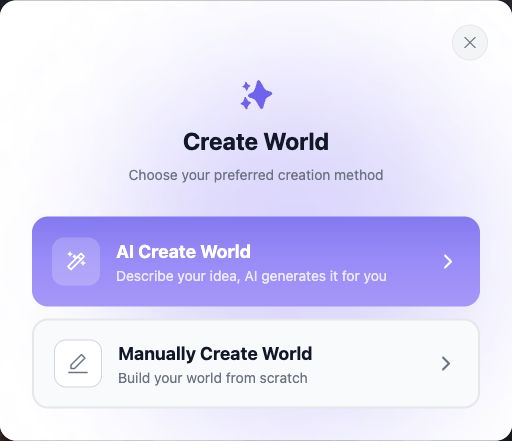
Start World creation on desktop Web from **Create → World**. Choose AI-assisted creation for a generated starting point or manual creation when you already have a structured setting. Review the creation resource prompt before confirming either path.

## Plan a World that can be tested

Write a short brief before opening the editor:

* **Premise:** A storm has trapped visitors in the Lantern Archive.
* **Player goal:** Find a safe route to the harbor before dawn.
* **Starting place:** The archive reading room.
* **Characters:** Mira the adult archive keeper and Sol the adult harbor courier.
* **Locations:** Reading room, west chart room and harbor gate.
* **First event:** A sealed message arrives with a damaged map.

This is enough to test introductions, movement and one relationship without first building a huge setting.

## Choose a creation path

1. Sign in on desktop Web and open **Create → World**.
2. Choose the AI or manual option.
3. Read any **Genesis Key** or other creation-resource notice. A creation resource is separate from player energy and chat Interaction Points. Confirm only if the displayed action and cost are what you intend.
4. In AI-assisted creation, describe the premise, player goal and important constraints. Treat generated material as a draft.
5. In manual creation, begin with the blank world's background and opening situation.
6. Work through the editor sections available for the world's blueprint, characters, relationships, places and events. Use the same names consistently across sections.
7. Set the starting location and opening dialogue. Add media after the basic scenario works, reviewing any generation prompt or cost first.
8. Save and reopen the draft to check the saved values. If a preview or test control is available, follow its instructions; open the app only when the product directs you there.

<figure><img src="https://files.gitbook.com/v0/b/gitbook-x-prod.appspot.com/o/spaces%2F4aMKN1uyxi8aJ6oPNmVQ%2Fuploads%2FS6crhFpeEWMtHaB0Wed9%2Fen-world-entry.jpg?alt=media&#x26;token=17fb4406-f885-4f79-841a-a3c895e3c69e" alt="AI and manual World creation choices"><figcaption><p>Choose AI-assisted or manual World creation.</p></figcaption></figure>

## Follow the Web AI creation cards

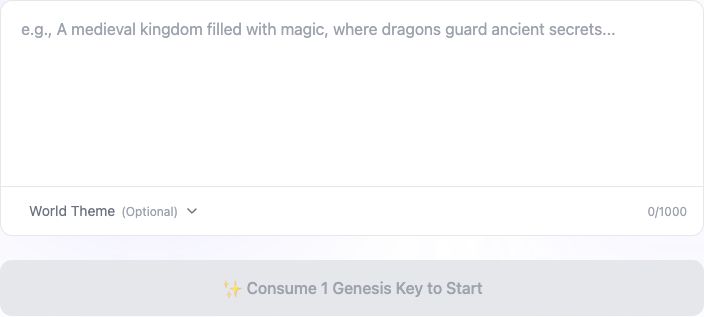
The AI entry uses **1 Genesis Key** to start the guided creation flow. Work through its cards in order: **Inspiration → Atmosphere → Visual style → Narration → Player unlock points**. The player unlock-points setting describes the points players would use to unlock the World; it is not the creation fee for generating this draft.

<figure><img src="https://files.gitbook.com/v0/b/gitbook-x-prod.appspot.com/o/spaces%2F4aMKN1uyxi8aJ6oPNmVQ%2Fuploads%2FQ9GikoQHtfLqSjwid51Z%2Fen-world-ai-start-cost.jpg?alt=media&#x26;token=04cbeacf-35f6-40f1-99d5-7f771bed9e4a" alt="World AI creation form and Genesis Key start prompt"><figcaption><p>Review the Genesis Key requirement shown before starting AI creation.</p></figcaption></figure>

Next, choose from your own characters or use AI suggestions. This creation panel requires at least **2 characters** and displays a **2–30** range. Review the world background and starting location, then configure the rules; the rules panel displays a **1–50** range. These ranges describe the current Web creation controls, not a promise about every platform or every existing World.

At the final step, make two separate choices:

| Control         | Choices                              |
| --------------- | ------------------------------------ |
| Generation flow | Generate and publish / Save as draft |
| Visibility      | Public / Private                     |

For a private test draft, select **Save as draft** and **Private**, then choose **Create draft**. Starting generation does not prove it has completed or that the draft is ready to play. Wait for the result and check the resulting status before leaving or trying the experience.

## Check the generated details

Make sure a character's knowledge matches the starting event, every referenced location exists, and the player has an actionable opening. Remove invented relationships you do not want. The opening should invite a decision, such as examining the map or asking the courier where it came from.

Use [Test, publish and maintain a World](https://book.rochat.ai/rochat_book_en/rochat-world/publish) for the test and publication checklist. Creating a draft is not the same as publishing it, and a World is not automatically a conversion of a Scene.

## Inspect the generated draft in the Web editor

When generation finishes, inspect the editor's status and version before continuing. A newly generated test draft can show **Draft v1**; that is a creator draft, not a player save or an approved public release.

The editor separates **Public Info**, **Experience Settings**, **Worldview Settings**, **Starting Location**, **Characters** and **Submit for Review**. Work through those sections to check the generated content.

In **Starting Location**, review the name and description; the current Web description field displays a **500-character** limit. Check background music, a **4:3 cover**, a **9:16 background**, and any optional **9:16 opening video**. Read the **Dialogue Content** sequence and check each line's audio status. A “Dialogue audio generated” status confirms that line's generation status, not that you have listened to it or tested mobile playback.

The editor describes **Private** as hidden from public areas, with access for you and activated users. It is therefore not an absolute “only me” access guarantee. Keep generation completion, visibility and review submission as separate checks. Saving a private draft does not mean you submitted it for review.

<figure><img src="https://files.gitbook.com/v0/b/gitbook-x-prod.appspot.com/o/spaces%2F4aMKN1uyxi8aJ6oPNmVQ%2Fuploads%2FQAF4VU9oJvLeNXOhCsRq%2Fen-world-visibility-close.jpg?alt=media&#x26;token=b1c6bfcc-ad87-4005-aff9-22fccff4ddcc" alt="World visibility choices and Private access explanation"><figcaption><p>World Private hides the work from public areas but still allows access for you and activated users.</p></figcaption></figure>

## Related guides

[Start with Rochat World](https://book.rochat.ai/rochat_book_en/rochat-world) · [Explore a World and continue a save](https://book.rochat.ai/rochat_book_en/rochat-world/explore) · [Test, publish and maintain a World](https://book.rochat.ai/rochat_book_en/rochat-world/publish) · [Membership and ways to spend](https://book.rochat.ai/rochat_book_en/membership-and-points) · [Limits, entitlements and costs](https://book.rochat.ai/rochat_book_en/limits-and-costs)

## Continue in Rochat (external)

[Open World creation](https://rochat.ai/world/create)

***

Previous: [Start with Rochat World](https://book.rochat.ai/rochat_book_en/rochat-world) · Next: [Membership and ways to spend](https://book.rochat.ai/rochat_book_en/membership-and-points)