> For the complete documentation index, see [llms.txt](https://book.rochat.ai/rochat_book_en/llms.txt). Markdown versions of documentation pages are available by appending `.md` to page URLs; this page is available as [Markdown](https://book.rochat.ai/rochat_book_en/lorebook-guide.md).

# Create, attach and troubleshoot a Lorebook

Build a concise Lorebook, add meaningful trigger words, attach it to an eligible work and diagnose missing lore.

Read this guide in: [English](https://book.rochat.ai/rochat_book_en/lorebook-guide) · [繁體中文](https://book.rochat.ai/rochat_book_zh/lorebook-guide) · [日本語](https://book.rochat.ai/rochat_book_ja/lorebook-guide) · [Español](https://book.rochat.ai/rochat_book_es/lorebook-guide) · [한국어](https://book.rochat.ai/rochat_book_kor/lorebook-guide)

A Lorebook stores short pieces of setting knowledge that can become relevant during a conversation. This walkthrough uses the current web character editor. Start with a few clear entries; overlapping triggers are harder to test.

## Create and attach a Lorebook on the web

1. Open a character you own in its editor, then find **Lorebook** under **Optional Settings**. If it is locked, choose **Unlock Gold Card**, review the displayed interaction-point cost and confirm the upgrade. Account membership and a character's Gold Card are separate qualifications.
2. Choose **Add Lorebook**, then **Create new Lorebook**.
3. Enter a name for the Lorebook, add a description if useful, then choose **Add entry**.
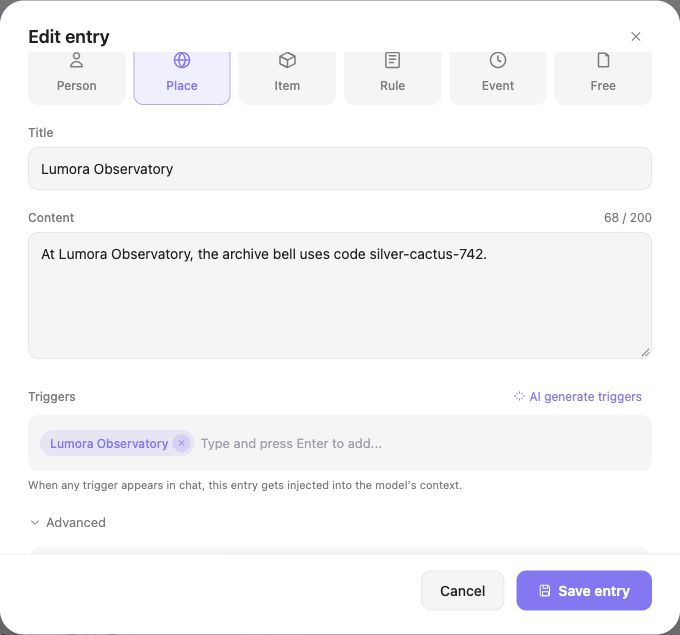
4. Choose a type such as **Place** and fill in the entry's **Title** and **Content**. Use the editor's counters and validation messages to stay within each field's limit.
5. Enter a meaningful **Trigger** and press Enter so it appears as a saved trigger item. For a straightforward test, leave **Trigger probability** at **100%**.
6. Choose **Save entry**. Check that the entry is listed inside the Lorebook editor.
7. Choose **Save** for the Lorebook. Return to **My Lorebooks** and confirm the saved book appears.
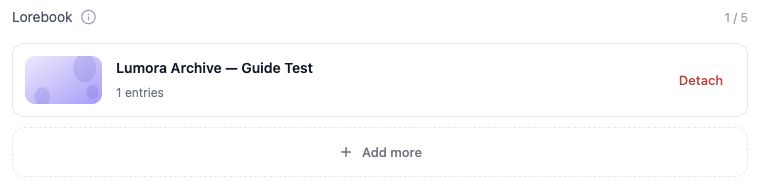
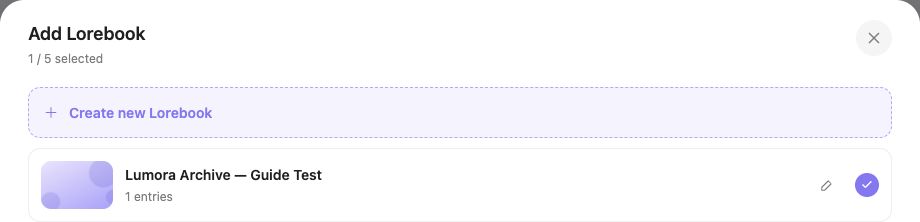
8. Select the book and choose **Attach**. Check that it appears in the character's Lorebook section; saving the book alone does not attach it.
9. **Save** the character and wait for the successful completion message. Reopen the editor to check the attachment is still present.

<figure><img src="https://files.gitbook.com/v0/b/gitbook-x-prod.appspot.com/o/spaces%2F4aMKN1uyxi8aJ6oPNmVQ%2Fuploads%2FvQrRcUr8X1ACAh3nZFhJ%2Fen-lorebook-selector.jpg?alt=media&#x26;token=606aea39-590d-4c05-9a5f-e49962f19568" alt="Lorebook selector with the tutorial book selected"><figcaption><p>Select your Lorebook in the list before using Attach.</p></figcaption></figure>

<figure><img src="https://files.gitbook.com/v0/b/gitbook-x-prod.appspot.com/o/spaces%2F4aMKN1uyxi8aJ6oPNmVQ%2Fuploads%2F8pyS783lUkvWOFj4WtCb%2Fen-lorebook-attach-action.jpg?alt=media&#x26;token=bf5bea49-4ebc-4db0-985e-c50d1c631871" alt="Lorebook selector footer with Cancel and Attach"><figcaption><p>After selecting the Lorebook, choose Attach.</p></figcaption></figure>

<figure><img src="https://files.gitbook.com/v0/b/gitbook-x-prod.appspot.com/o/spaces%2F4aMKN1uyxi8aJ6oPNmVQ%2Fuploads%2FwEm2nEJGnoUlkoFiGaVy%2Fen-lorebook-attached.jpg?alt=media&#x26;token=ef9755c0-0ca7-4048-b5f9-4d3f67f49922" alt="Attached tutorial Lorebook in the character editor"><figcaption><p>Check that the attached Lorebook appears in the character editor, then save the character.</p></figcaption></figure>

Example:

| Field               | Value                                                                |
| ------------------- | -------------------------------------------------------------------- |
| Lorebook name       | Lumora Archive                                                       |
| Entry title         | Lumora Observatory                                                   |
| Type                | Place                                                                |
| Content             | At Lumora Observatory, the archive bell uses code silver-cactus-742. |
| Trigger             | Lumora Observatory                                                   |
| Trigger probability | 100%                                                                 |

<figure><img src="https://files.gitbook.com/v0/b/gitbook-x-prod.appspot.com/o/spaces%2F4aMKN1uyxi8aJ6oPNmVQ%2Fuploads%2FB3m76U09yfuzusFO5sa1%2Fen-lorebook-entry.jpg?alt=media&#x26;token=74024cbe-2a1a-4a11-904d-c8bee082aeb7" alt="Lorebook entry content, trigger and Save entry"><figcaption><p>Enter the lore detail and add a trigger as a saved chip, then choose Save entry.</p></figcaption></figure>

Keep the code in the Lorebook entry, rather than copying it into the character description, Persona or test message. This makes the test easier to interpret. Avoid very common triggers such as “the”; use a distinctive place, person or object name.

## Choose a model and test the setting

Open a new conversation with the character. Read the current model selector and choose a model whose description indicates Lorebook support. Check any displayed membership requirement and point cost. Model availability and support can change; do not treat an older “SOTA or Rose only” tooltip as a complete current list.

Ask: “At Lumora Observatory, what code does the archive bell use?” The message contains the trigger but not the answer. Check whether the reply uses the intended detail, then try an unrelated question to check that the conversation stays natural. A correct answer is useful feedback, but it does not by itself prove exactly which information was supplied to the model.

## Import a longer setting with AI Split

If **AI Split** is available in your editor, use it to organize a longer setting into proposed entries. Review titles, content and triggers before saving and attaching the Lorebook. Remove duplicate or invented facts. AI Split is an editing aid, not a guarantee of accuracy.

## When lore does not appear

Check each save separately: **Save entry**, Lorebook **Save**, **Attach**, and character **Save**. Confirm the intended character has the book, the selected model supports Lorebook, and the trigger appears in the conversation. Check for conflicting character instructions and overly broad competing entries. Probability and available context can affect selection; even at 100%, a matching trigger does not guarantee that every entry appears in every reply.

## Related guides

[Choose a model and understand context](https://book.rochat.ai/rochat_book_en/how-to-create-a-character-on-rochat/create-character-method-1-custom-creation/model-selection) · [Character settings and variables](https://book.rochat.ai/rochat_book_en/how-to-create-a-character-on-rochat/create-character-method-1-custom-creation/character-info) · [Lorebook, Memory and Persona explained](https://book.rochat.ai/rochat_book_en/lorebook) · [Gold Cards explained](https://book.rochat.ai/rochat_book_en/how-to-create-a-gold-card-on-rochat) · [Limits, entitlements and costs](https://book.rochat.ai/rochat_book_en/limits-and-costs)

## Continue in Rochat (external)

[Open your creations](https://rochat.ai/profile)

***

Previous: [Lorebook, Memory and Persona explained](https://book.rochat.ai/rochat_book_en/lorebook) · Next: [Start with Rochat World](https://book.rochat.ai/rochat_book_en/rochat-world)