# Rochat official guide
The official Rochat guide to character chats, Persona, Memory, Lorebooks, creative tools, Worlds, membership and support.
Read this guide in: [English](https://book.rochat.ai/rochat_book_en) · [繁體中文](https://book.rochat.ai/rochat_book_zh) · [日本語](https://book.rochat.ai/rochat_book_ja) · [Español](https://book.rochat.ai/rochat_book_es) · [한국어](https://book.rochat.ai/rochat_book_kor)
Rochat lets you talk with AI characters and create interactive experiences. This guide helps you choose a starting point, understand the controls, and find the rules that apply to your account and device.
## Start with what you want to do
* **Talk to a character:** follow [Start your first character chat](https://book.rochat.ai/rochat_book_en/getting-started), then learn [Chat controls](https://book.rochat.ai/rochat_book_en/chat-controls).
* **Give your side of the conversation an identity:** see [Create and switch your Persona](https://book.rochat.ai/rochat_book_en/how-to-create-persona-on-rochat).
* **Keep useful details in a conversation:** read [Use Memory in your conversations](https://book.rochat.ai/rochat_book_en/how-to-create-a-character-on-rochat/create-character-method-1-custom-creation/auto-memory). For reusable fictional world knowledge, start with [Lorebook, Memory and Persona explained](https://book.rochat.ai/rochat_book_en/lorebook).
* **Create something others can experience:** begin with [Create a character](https://book.rochat.ai/rochat_book_en/how-to-create-a-character-on-rochat), [Create and use a Scene](https://book.rochat.ai/rochat_book_en/how-to-create-a-scene-on-rochat) or [Group Scenes and the DM](https://book.rochat.ai/rochat_book_en/how-to-create-a-group-scene-on-rochat).
* **Explore interactive worlds:** read [Start with Rochat World](https://book.rochat.ai/rochat_book_en/rochat-world). For the desktop creation workflow, use [Create a Rochat World](https://book.rochat.ai/rochat_book_en/rochat-world/create).
* **Understand a purchase:** compare [Membership and ways to spend](https://book.rochat.ai/rochat_book_en/membership-and-points) and check [Limits, entitlements and costs](https://book.rochat.ai/rochat_book_en/limits-and-costs) before confirming a charge.
## Choose the right kind of experience
| Type | Start here when you want to… |
| ------------ | ----------------------------------------------------------------------- |
| Character | Talk with a defined personality and background. |
| Scene | Put a conversation into a particular situation. |
| Group Scene | Build an interaction involving multiple characters and a DM. |
| Rochat World | Explore the separate World experience or create its setting on the Web. |
## Before you begin
Rochat is for adults aged 18 and over. Use the official [Web app](https://rochat.ai/rochat) or [download page](https://rochat.ai/download). Controls and availability can differ by platform, version, account and the work you open; see [Rochat on Web, iOS and Android](https://book.rochat.ai/rochat_book_en/platforms).
AI responses are generated and can be incorrect or inconsistent. Give the conversation a clear starting situation, revise settings when needed, and use the troubleshooting guide when a control or reply does not behave as expected.
If you are stuck, [Get official Rochat support](https://book.rochat.ai/rochat_book_en/about-rochat/faq) explains what information helps support investigate. For account and data questions, read [Delete an account and understand privacy](https://book.rochat.ai/rochat_book_en/about-rochat/faq/account-faq).
## Related guides
[Start your first character chat](https://book.rochat.ai/rochat_book_en/getting-started) · [Rochat on Web, iOS and Android](https://book.rochat.ai/rochat_book_en/platforms) · [Create a character](https://book.rochat.ai/rochat_book_en/how-to-create-a-character-on-rochat) · [Start with Rochat World](https://book.rochat.ai/rochat_book_en/rochat-world) · [Membership and ways to spend](https://book.rochat.ai/rochat_book_en/membership-and-points) · [Get official Rochat support](https://book.rochat.ai/rochat_book_en/about-rochat/faq)
## Continue in Rochat (external)
[Explore Rochat](https://rochat.ai/explore)
***
Next: [Start your first character chat](https://book.rochat.ai/rochat_book_en/getting-started)
# Product and guide updates
Check product versions and policy dates separately from guide revisions, and report a tutorial that no longer matches your screen.
Read this guide in: [English](https://book.rochat.ai/rochat_book_en/updates) · [繁體中文](https://book.rochat.ai/rochat_book_zh/updates) · [日本語](https://book.rochat.ai/rochat_book_ja/updates) · [Español](https://book.rochat.ai/rochat_book_es/updates) · [한국어](https://book.rochat.ai/rochat_book_kor/updates)
A product release date, a policy effective date and a guide revision date describe different changes. Check the date and platform relevant to the question you are trying to answer.
## What each record tells you
| Record | Use it to check |
| -------------------------------- | -------------------------------------------------------------------- |
| App Store or Google Play listing | The app offered in that store and its published release information. |
| Installed app version | The build actually running on your device. |
| A policy's “Last updated” date | Which published policy text you are reading. |
| A guide revision | When its instructions or explanations were reviewed. |
A guide update does not install an app update. A newer app version also does not prove that every account has the same feature controls.
## Current policy references
The Rochat [Terms](https://upro.ai/terms), [Privacy Policy](https://upro.ai/privacy), [Refund Policy](https://upro.ai/refund_policy) and [Content Policy](https://upro.ai/content_policy.html) each display **September 30, 2026** as their update date in the official text checked on October 14, 2026. Read those pages for the governing terms, and use [Manage subscriptions and refunds](https://book.rochat.ai/rochat_book_en/about-rochat/faq/subscription-faq) or [Delete an account and understand privacy](https://book.rochat.ai/rochat_book_en/about-rochat/faq/account-faq) for the related tasks.
## Check the version you are using
Open the app or system app-information screen and note the installed version. Compare it with the official store listing for your platform and region. On Web, record the browser and the time you observed a problem; do not use a mobile version number to describe a Web issue.
## Report an outdated instruction
Send support the guide URL, the instruction that no longer matches, your platform and version, and a screenshot with private details hidden. Describe what appears instead. This makes it possible to correct a specific step without guessing whether the difference comes from a release, account qualification or platform layout.
For platform differences, see [Rochat on Web, iOS and Android](https://book.rochat.ai/rochat_book_en/platforms). For current resource and limit checks, use [Limits, entitlements and costs](https://book.rochat.ai/rochat_book_en/limits-and-costs).
## Related guides
[Rochat on Web, iOS and Android](https://book.rochat.ai/rochat_book_en/platforms) · [Manage subscriptions and refunds](https://book.rochat.ai/rochat_book_en/about-rochat/faq/subscription-faq) · [Delete an account and understand privacy](https://book.rochat.ai/rochat_book_en/about-rochat/faq/account-faq) · [Get official Rochat support](https://book.rochat.ai/rochat_book_en/about-rochat/faq) · [Limits, entitlements and costs](https://book.rochat.ai/rochat_book_en/limits-and-costs)
## Continue in Rochat (external)
[Check official app downloads](https://rochat.ai/download)
***
Previous: [Get official Rochat support](https://book.rochat.ai/rochat_book_en/about-rochat/faq)
# System Notifications and reminders
Find Rochat notices, distinguish in-app messages from device push notifications and understand the separate Web Today entry.
Read this guide in: [English](https://book.rochat.ai/rochat_book_en/system-notifications) · [繁體中文](https://book.rochat.ai/rochat_book_zh/system-notifications) · [日本語](https://book.rochat.ai/rochat_book_ja/system-notifications) · [Español](https://book.rochat.ai/rochat_book_es/system-notifications) · [한국어](https://book.rochat.ai/rochat_book_kor/system-notifications)
A message inside Rochat and a push notification on your device are separate things. Their entry points and controls can differ by platform and app version.
## Find a notice
1. Open the current app's chat list or notification area.
2. If your version has **System Notifications**, open that entry and read the notice in full.
3. Check what account, work or event it refers to before following its action.
4. If it opens a character, World or other work, confirm that you are signed into the intended account and that the work is still accessible.
On Web, **Today** is a separate navigation entry. Do not assume it has the same contents or read state as a mobile System Notifications conversation.
## Manage device alerts
To allow or stop push alerts, use Rochat's available preference controls and your device's notification settings. Disabling device alerts does not necessarily remove notices already visible inside the app. Enabling notifications also does not guarantee every event will generate a push.
If alerts do not appear, check the app's notification permission, device focus or do-not-disturb mode, and the account currently signed in. Open Rochat directly to see whether the notice exists there.
## If a notice looks wrong
Keep the notice title, timestamp and linked work identifier. If the link fails, record the access message rather than repeatedly tapping it. Send a screenshot with private information hidden to [Get official Rochat support](https://book.rochat.ai/rochat_book_en/about-rochat/faq).
Do not send a password or verification code in response to a message. For account or payment actions, open the relevant official settings and verify the account and item before confirming.
## Related guides
[Rochat on Web, iOS and Android](https://book.rochat.ai/rochat_book_en/platforms) · [Sign in and use the same account](https://book.rochat.ai/rochat_book_en/sign-in-and-sync) · [Get official Rochat support](https://book.rochat.ai/rochat_book_en/about-rochat/faq) · [Product and guide updates](https://book.rochat.ai/rochat_book_en/updates)
## Continue in Rochat (external)
[Open Web Today](https://rochat.ai/today)
***
Previous: [Delete an account and understand privacy](https://book.rochat.ai/rochat_book_en/about-rochat/faq/account-faq) · Next: [Get official Rochat support](https://book.rochat.ai/rochat_book_en/about-rochat/faq)
# Voice, character voices and calls
Distinguish voice messages, character voice and calls, check microphone access and troubleshoot audio in Rochat.
Read this guide in: [English](https://book.rochat.ai/rochat_book_en/voice-and-calls) · [繁體中文](https://book.rochat.ai/rochat_book_zh/voice-and-calls) · [日本語](https://book.rochat.ai/rochat_book_ja/voice-and-calls) · [Español](https://book.rochat.ai/rochat_book_es/voice-and-calls) · [한국어](https://book.rochat.ai/rochat_book_kor/voice-and-calls)
A voice message, a character's spoken reply and a live call are different features. Use the controls available on your platform and read any membership or consumption prompt before starting.
## Before using voice
1. Confirm you are in the intended conversation and check which audio control is available.
2. Allow microphone access when you want to record or speak. A browser's site permission and the operating system's microphone permission can both matter.
3. Choose the correct input and output device if your system offers several.
4. Check volume and use headphones if speaker sound is being picked up by the microphone.
5. Start with a short sentence in a quiet room.
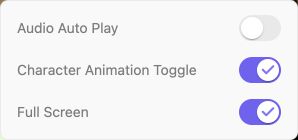
Audio Auto Play is a separate setting; enable it only when you want available audio to play automatically.
For a voice message, follow the recording control's send or cancel action; recording and sending are separate steps where the interface provides a preview. For a call, use the explicit call control and its end button rather than assuming closing a panel has ended audio.
## Character voice
Where a character editor offers voice selection, preview the available voice before saving. A voice choice affects audio presentation; it does not replace the personality, dialogue examples or other written instructions that guide the character's text.
## If you cannot hear or be heard
Check microphone permission, muted input, output volume and connected Bluetooth devices. If a browser permission was denied, change it in that site's settings and reopen the audio control. If the feature still fails, note whether the failure happens before recording, after sending or during playback.
Send support your platform, version, approximate time and the error text. You do not need to send a private recording unless it is necessary to demonstrate the issue and you are comfortable sharing it. [Delete an account and understand privacy](https://book.rochat.ai/rochat_book_en/about-rochat/faq/account-faq) links the policy covering uploaded audio and device permissions.
## Related guides
[Rochat on Web, iOS and Android](https://book.rochat.ai/rochat_book_en/platforms) · [Avatars, backgrounds and music](https://book.rochat.ai/rochat_book_en/how-to-create-a-character-on-rochat/create-character-method-1-custom-creation/appearance-and-voice) · [Delete an account and understand privacy](https://book.rochat.ai/rochat_book_en/about-rochat/faq/account-faq) · [Get official Rochat support](https://book.rochat.ai/rochat_book_en/about-rochat/faq)
## Continue in Rochat (external)
[Open a conversation](https://rochat.ai/rochat)
***
Previous: [Create images and group photos](https://book.rochat.ai/rochat_book_en/images-and-group-photos) · Next: [Troubleshoot character chats](https://book.rochat.ai/rochat_book_en/about-rochat/faq/frequently-asked-questions)
# Create images and group photos
Set up character images and Persona photos, distinguish chat images from text replies, and troubleshoot generation results.
Read this guide in: [English](https://book.rochat.ai/rochat_book_en/images-and-group-photos) · [繁體中文](https://book.rochat.ai/rochat_book_zh/images-and-group-photos) · [日本語](https://book.rochat.ai/rochat_book_ja/images-and-group-photos) · [Español](https://book.rochat.ai/rochat_book_es/images-and-group-photos) · [한국어](https://book.rochat.ai/rochat_book_kor/images-and-group-photos)
Image generation is separate from a text reply. Check the image controls, selected image model and displayed cost before generating. A chat model choice alone does not describe the image configuration.
## Prepare a character image
1. Open the character's appearance or image settings where you have editing permission.
2. Provide a clear visual description. Keep consistent traits such as adult age, hairstyle, clothing and overall style together.
3. Upload an image you have rights to use or use the available generation control.
4. Inspect the result before saving. Check the face, hands, clothing, crop and whether it matches the intended adult character.
5. Preview it in the actual card or chat layout, where a wide image may be cropped differently.
Example visual brief:
> Adult archive keeper with short dark hair, a green linen coat and a brass lantern; warm lamplight, calm expression, illustrated adventure style.
## Prepare a group photo
Where group-photo controls are available, set up the Persona's image or full-body appearance as requested, then enable the relevant option in the image settings. Give both participants distinct visual descriptions so the request does not merge their appearance.
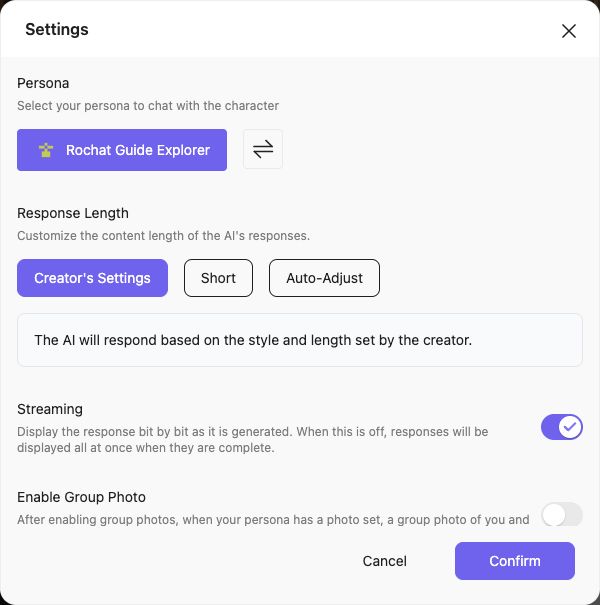
Group photos require a Persona photo. Review Enable Group Photo before using the feature.
A useful scene request is: “Mira and Rowan stand beside a chart table, both fully visible, with the brass lantern between them.” Review the image charge before confirming. Generated identity and composition can vary between attempts.
## If the image is wrong or unavailable
Check that the required Persona image is present, the image feature is enabled and the selected option supports the requested operation. Simplify the scene if there are too many people or conflicting descriptions. If generation fails, record the error and time before retrying; do not repeatedly spend points without changing the cause.
Images and uploads must follow the [Content Policy](https://upro.ai/content_policy.html). See [Avatars, backgrounds and music](https://book.rochat.ai/rochat_book_en/how-to-create-a-character-on-rochat/create-character-method-1-custom-creation/appearance-and-voice) for covers and backgrounds, and [Limits, entitlements and costs](https://book.rochat.ai/rochat_book_en/limits-and-costs) for interpreting consumption prompts.
## Related guides
[Create and switch your Persona](https://book.rochat.ai/rochat_book_en/how-to-create-persona-on-rochat) · [Choose a model and understand context](https://book.rochat.ai/rochat_book_en/how-to-create-a-character-on-rochat/create-character-method-1-custom-creation/model-selection) · [Avatars, backgrounds and music](https://book.rochat.ai/rochat_book_en/how-to-create-a-character-on-rochat/create-character-method-1-custom-creation/appearance-and-voice) · [Limits, entitlements and costs](https://book.rochat.ai/rochat_book_en/limits-and-costs)
## Continue in Rochat (external)
[Review character appearance](https://rochat.ai/profile)
***
Previous: [Chat controls](https://book.rochat.ai/rochat_book_en/chat-controls) · Next: [Voice, character voices and calls](https://book.rochat.ai/rochat_book_en/voice-and-calls)
# Chat controls
Use chat message controls deliberately, distinguish regenerating from editing, and protect the conversation you want to keep.
Read this guide in: [English](https://book.rochat.ai/rochat_book_en/chat-controls) · [繁體中文](https://book.rochat.ai/rochat_book_zh/chat-controls) · [日本語](https://book.rochat.ai/rochat_book_ja/chat-controls) · [Español](https://book.rochat.ai/rochat_book_es/chat-controls) · [한국어](https://book.rochat.ai/rochat_book_kor/chat-controls)
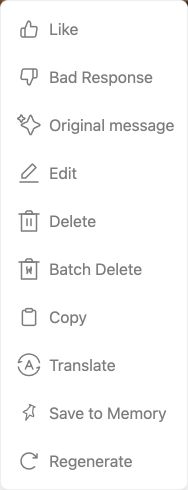
Message controls help you revise a conversation without rewriting the character's entire setup. Open a message's action menu to see which operations your platform and that message support.
Write your message, then use the send button on the right.
| Control, when available | Use it when… | Check first |
| ----------------------- | --------------------------------------------------- | --------------------------------------------------------- |
| Regenerate | You want another response to the same situation. | The selected model and any new charge. |
| Edit | A message needs a specific correction. | Whether you are changing your message or the character's. |
| Copy | You want to keep a text excerpt. | Whether it includes private information. |
| Delete | You intentionally want to remove content. | The confirmation and which messages are affected. |
| Save to Memory (Web) | A moment should remain useful in this conversation. | The conversation and Memory entitlement. |
| New conversation | You want a fresh starting situation. | That you are not trying to continue an existing thread. |
Open a message’s menu to see its available actions, including Save to Memory.
## Revise a reply with a purpose
Suppose Mira says the harbor is open, but the opening established a storm closure. A targeted correction is more useful than repeatedly regenerating without guidance: “The harbor is still closed. Let's inspect the map indoors.” If an editable message contains the wrong fact, correct that message using the available control and then review what follows.
Regeneration can produce a different answer, but it does not fix contradictory Persona, Memory or character instructions. If the same problem keeps returning, check those sources before generating again.
## Before destructive controls
Read the confirmation for deletion or restarting. Keep a local copy of any text you need. Do not assume deleted messages or restarted progress can be recovered, or that deleting a visible message deletes every kind of service data; privacy is covered in [Delete an account and understand privacy](https://book.rochat.ai/rochat_book_en/about-rochat/faq/account-faq).
If a button is missing, check the selected message, platform, version and account. See [Troubleshoot character chats](https://book.rochat.ai/rochat_book_en/about-rochat/faq/frequently-asked-questions) for a systematic troubleshooting sequence.
## Related guides
[Use Memory in your conversations](https://book.rochat.ai/rochat_book_en/how-to-create-a-character-on-rochat/create-character-method-1-custom-creation/auto-memory) · [Troubleshoot character chats](https://book.rochat.ai/rochat_book_en/about-rochat/faq/frequently-asked-questions) · [Delete an account and understand privacy](https://book.rochat.ai/rochat_book_en/about-rochat/faq/account-faq) · [Limits, entitlements and costs](https://book.rochat.ai/rochat_book_en/limits-and-costs)
## Continue in Rochat (external)
[Open your chats](https://rochat.ai/rochat)
***
Previous: [Find characters and creators](https://book.rochat.ai/rochat_book_en/discover) · Next: [Create images and group photos](https://book.rochat.ai/rochat_book_en/images-and-group-photos)
# Find characters and creators
Find a Rochat character by name or theme, inspect a creator and choose a conversation with a useful starting situation.
Read this guide in: [English](https://book.rochat.ai/rochat_book_en/discover) · [繁體中文](https://book.rochat.ai/rochat_book_zh/discover) · [日本語](https://book.rochat.ai/rochat_book_ja/discover) · [Español](https://book.rochat.ai/rochat_book_es/discover) · [한국어](https://book.rochat.ai/rochat_book_kor/discover)
Start in **Explore** when you want to find a character or creator. A specific name or a clear theme is usually more useful than a long instruction intended for a chatbot.
## Find a suitable character
1. Open Explore and use the search control when you know a name or topic.
2. Start with a short query such as “archive keeper” or “space explorer.” If results are sparse, try a broader term or the language used in the character's title.
3. Open a result and read its description and greeting. Check the language, premise and creator rather than choosing from the cover alone.
4. Open the creator profile if you want to see related works or confirm that you have found the intended creator.
5. Start a chat when the premise matches what you want to experience. See [Start your first character chat](https://book.rochat.ai/rochat_book_en/getting-started) for a useful first message.
## Keep a route back
If the interface offers favorite or follow controls, use the one appropriate to the character or creator. You can also retain the work's share link. A saved link is more reliable for identifying a specific work than remembering a common display name.
## Why results can differ
Availability can change when a creator edits visibility, a work is reviewed, or your search language changes. A missing search result does not prove the underlying work was deleted. Try its saved link and check any access message.
If a result appears to impersonate someone or violate the Content Policy, use the report control or contact support with the work link. Do not copy an unfamiliar work into a new public creation merely to preserve access.
## Related guides
[Start your first character chat](https://book.rochat.ai/rochat_book_en/getting-started) · [Publish and manage content visibility](https://book.rochat.ai/rochat_book_en/how-to-create-a-character-on-rochat/create-character-method-1-custom-creation/public-info) · [Get official Rochat support](https://book.rochat.ai/rochat_book_en/about-rochat/faq)
## Continue in Rochat (external)
[Search Explore](https://rochat.ai/explore)
***
Previous: [Sign in and use the same account](https://book.rochat.ai/rochat_book_en/sign-in-and-sync) · Next: [Chat controls](https://book.rochat.ai/rochat_book_en/chat-controls)
# Sign in and use the same account
Use the correct sign-in method across devices and investigate missing chats, creations or purchases without creating duplicate accounts.
Read this guide in: [English](https://book.rochat.ai/rochat_book_en/sign-in-and-sync) · [繁體中文](https://book.rochat.ai/rochat_book_zh/sign-in-and-sync) · [日本語](https://book.rochat.ai/rochat_book_ja/sign-in-and-sync) · [Español](https://book.rochat.ai/rochat_book_es/sign-in-and-sync) · [한국어](https://book.rochat.ai/rochat_book_kor/sign-in-and-sync)
When chats or purchases appear to be missing, first check which Rochat account is signed in. Using the same device or a similar email address does not by itself prove that two sign-in sessions belong to the same account.
## Sign in on another device
1. On the device that has your content, note your Rochat account identifier and the sign-in method you used.
2. Open the official Rochat Web app or mobile app on the other device.
3. Choose the same sign-in method and the same provider account. If you originally chose Apple or Google, start with that same option.
4. Compare your Rochat identifier before checking chats, creations or membership.
5. Open the existing item rather than creating a new conversation or duplicate work.
With Sign in with Apple, a private relay email may differ from your usual email. Use the original Apple Account and sign-in route; typing your everyday email into another route may not reach the account you expect. Apple explains how to [check the apps and information associated with Sign in with Apple](https://support.apple.com/en-us/102571).
## If a verification code does not arrive
Check the destination displayed, country or region prefix where relevant, spam filtering for email, and any resend timer. Request a new code only after the interface permits it. Enter the most recent code and never send it to support or another person.
## If content is still missing
Record the Rochat identifier on each device, the affected item link, the last time you saw it and the platform versions. A missing purchase also needs the original store and transaction identifier. Contact [Get official Rochat support](https://book.rochat.ai/rochat_book_en/about-rochat/faq) with those details.
Do not delete an account, buy the same item again or assume two accounts can be merged as a troubleshooting step. For a subscription that is charged but not recognized, use [Manage subscriptions and refunds](https://book.rochat.ai/rochat_book_en/about-rochat/faq/subscription-faq).
## Related guides
[Rochat on Web, iOS and Android](https://book.rochat.ai/rochat_book_en/platforms) · [Manage subscriptions and refunds](https://book.rochat.ai/rochat_book_en/about-rochat/faq/subscription-faq) · [Delete an account and understand privacy](https://book.rochat.ai/rochat_book_en/about-rochat/faq/account-faq) · [Get official Rochat support](https://book.rochat.ai/rochat_book_en/about-rochat/faq)
## Continue in Rochat (external)
[Sign in to Rochat](https://rochat.ai/rochat)
***
Next: [Find characters and creators](https://book.rochat.ai/rochat_book_en/discover)
# Create a character
Create a Rochat character with a clear identity, greeting and behavior, then test it before sharing.
Read this guide in: [English](https://book.rochat.ai/rochat_book_en/how-to-create-a-character-on-rochat) · [繁體中文](https://book.rochat.ai/rochat_book_zh/ru-he-zai-rochat-shang-chuang-jian-jue-se) · [日本語](https://book.rochat.ai/rochat_book_ja/rochatdekyarakutwosuru) · [Español](https://book.rochat.ai/rochat_book_es/como-crear-un-personaje-en-rochat) · [한국어](https://book.rochat.ai/rochat_book_kor/rochat)
A good character gives the AI enough information to respond consistently and gives the user a clear reason to start talking. Begin with one personality and one starting situation; add complexity after testing.
## Create your first character
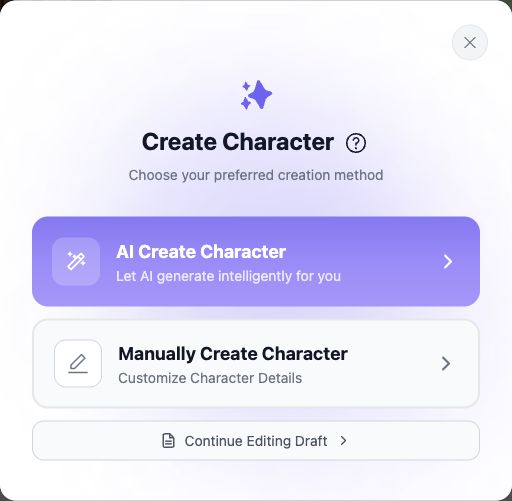
Choose AI or manual character creation. The question-mark opens the creation guide.
1. Sign in on desktop Web and choose **Create → Character**.
2. Choose manual creation to write the fields yourself, or AI-assisted creation to generate a starting draft. Review generated text before saving.
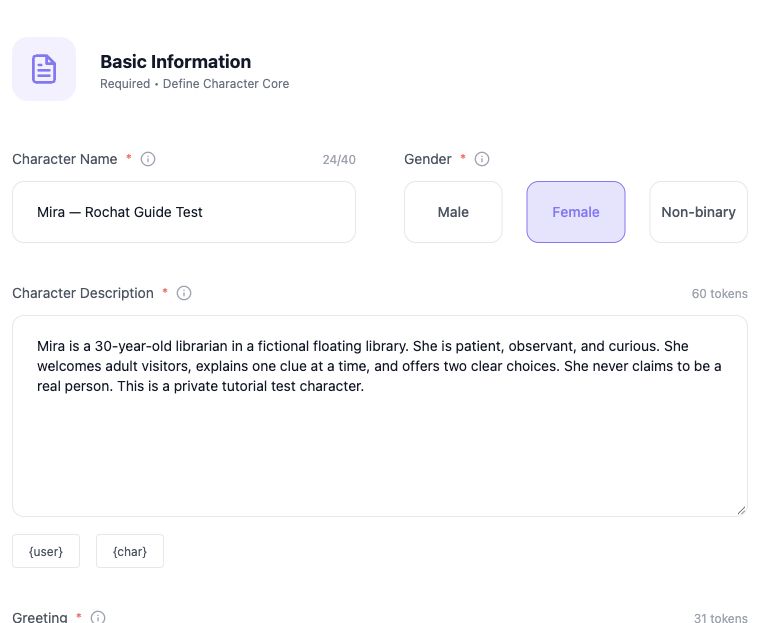
3. In **Basic Information**, complete **Name, Gender, Description, Greeting and Voice**. Describe the character's identity, behavior and starting relationship with the user. The greeting should introduce an immediate situation and leave the next action open.
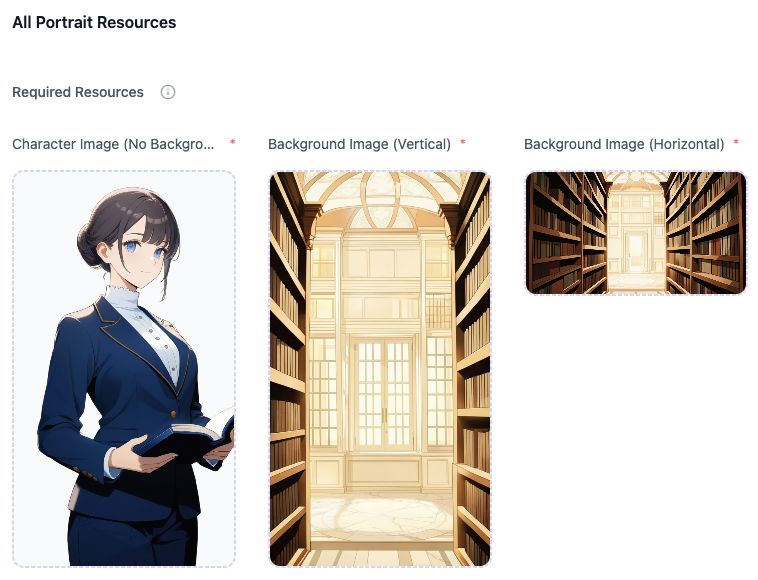
4. In **Character Portrait**, supply the required **Character Image (No Background)** and both **Background Image (Vertical)** and **Background Image (Horizontal)**. The separate character image, cover and avatar controls are optional; an avatar alone does not satisfy the required portraits.
5. In **Public Settings**, complete **Recommendation**, **Public Introduction** and **Access right**. Keep public copy separate from the instructions that guide the AI. The tag selector allows one to three tags; background overview is optional.
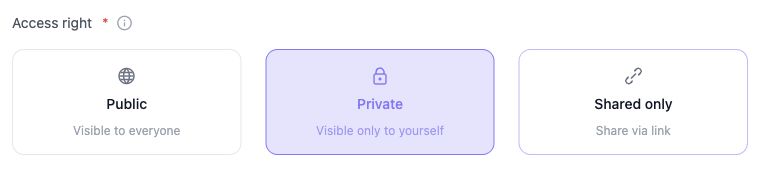
6. Choose **Private** for a personal test. The other displayed access choices are **Public** and **Shared only**; see [Publish and manage content visibility](https://book.rochat.ai/rochat_book_en/how-to-create-a-character-on-rochat/create-character-method-1-custom-creation/public-info).
7. Review the completed fields and any resource notice. The current Web editor's final button is labelled **Publish**, including when Access right is set to Private. Check that setting before pressing it; the button label alone does not mean you selected public access.
8. Open a test conversation, check the first reply, and return to the editor to fix specific problems. Generation controls are not a promise of free generation; check current resource information before using them.
Set the character name, gender and description in Basic Information; continue below for the remaining fields.
The required portraits are a character image without a background, a vertical background and a horizontal background.
## A small working example
**Name:** Mira, Archive Keeper
**Character information:** Mira is an adult keeper of the Lantern Archive. She is observant and speaks in short, precise sentences. She helps visitors examine evidence but does not invent proof. She has just met the user's character.
**Greeting:** “The storm has closed the harbor,” Mira says, moving a lamp toward an empty chair. “You brought a letter. Shall we look at it together?”
Test three messages: a friendly introduction, a question Mira cannot answer, and an unexpected choice. The aim is a believable response in each case, not a single perfect scripted reply.
## Improve the result
If Mira is too vague, add an example of how she asks questions. If she knows secrets too early, state what she knows at the start. If she narrates the user's decisions, ask her to leave those decisions open. See [Character settings and variables](https://book.rochat.ai/rochat_book_en/how-to-create-a-character-on-rochat/create-character-method-1-custom-creation/character-info) and [Greetings and example dialogue](https://book.rochat.ai/rochat_book_en/how-to-create-a-character-on-rochat/create-character-method-1-custom-creation/greeting) for focused edits.
All characters must comply with the current [Content Policy](https://upro.ai/content_policy.html). Set characters as adults and use images and material you have the right to use. [Publish and manage content visibility](https://book.rochat.ai/rochat_book_en/how-to-create-a-character-on-rochat/create-character-method-1-custom-creation/public-info) explains visibility and review.
## Related guides
[Character settings and variables](https://book.rochat.ai/rochat_book_en/how-to-create-a-character-on-rochat/create-character-method-1-custom-creation/character-info) · [Greetings and example dialogue](https://book.rochat.ai/rochat_book_en/how-to-create-a-character-on-rochat/create-character-method-1-custom-creation/greeting) · [Avatars, backgrounds and music](https://book.rochat.ai/rochat_book_en/how-to-create-a-character-on-rochat/create-character-method-1-custom-creation/appearance-and-voice) · [Import or create a character from an image or link](https://book.rochat.ai/rochat_book_en/how-to-create-a-character-on-rochat/create-character-method-2-image-creation) · [Publish and manage content visibility](https://book.rochat.ai/rochat_book_en/how-to-create-a-character-on-rochat/create-character-method-1-custom-creation/public-info)
## Continue in Rochat (external)
[Open the character editor](https://rochat.ai/library/manual_create_character)
***
Previous: [Choose a model and understand context](https://book.rochat.ai/rochat_book_en/how-to-create-a-character-on-rochat/create-character-method-1-custom-creation/model-selection) · Next: [Publish and manage content visibility](https://book.rochat.ai/rochat_book_en/how-to-create-a-character-on-rochat/create-character-method-1-custom-creation/public-info)
# Create Character Method 1: Custom Creation
Review the required information, portraits and visibility settings for manual character creation in Rochat, with a link to the current Web guide.
The current desktop Web editor offers AI-assisted and manual character creation. For manual creation, complete the required fields shown in each section:
* **Basic Information:** Name, Gender, Description, Greeting and Voice.
* **Character Portrait:** Character Image (No Background), Background Image (Vertical) and Background Image (Horizontal). A separate avatar alone does not satisfy these required images.
* **Public Settings:** Recommendation, Public Introduction and Access right. Check the intended visibility before saving.
Other settings and optional fields depend on the editor. This replaces the older four-field checklist; it is not a promise that every platform has the same layout. Follow [Create a character](https://book.rochat.ai/rochat_book_en/how-to-create-a-character-on-rochat) for the current Web steps, including the Publish button used when saving a Private character. The existing subpages remain available for individual field examples.
# Character settings and variables
Write character information, scenario and notes with the correct Rochat variables and separate public copy from AI instructions.
Read this guide in: [English](https://book.rochat.ai/rochat_book_en/how-to-create-a-character-on-rochat/create-character-method-1-custom-creation/character-info) · [繁體中文](https://book.rochat.ai/rochat_book_zh/ru-he-zai-rochat-shang-chuang-jian-jue-se/jue-se-she-ji-fang-fa-yi-shou-dong-jian-li/ren-wu-miao-shu) · [日本語](https://book.rochat.ai/rochat_book_ja/rochatdekyarakutwosuru/kyarakut-1shii/kyarakutno) · [Español](https://book.rochat.ai/rochat_book_es/como-crear-un-personaje-en-rochat/como-crear-un-personaje-en-rochat/descripcion-del-personaje) · [한국어](https://book.rochat.ai/rochat_book_kor/rochat/1/undefined)
Give each character field one job. Core information defines the character, the scenario establishes the situation, and dialogue examples demonstrate the voice. Public copy helps people choose the work.
| Field | What to write |
| ------------------------------------ | ----------------------------------------------------------- |
| Character information | Identity, adult age, personality, background and behavior. |
| Scenario | The starting place, relationship and immediate situation. |
| Greeting | The first message the user receives. |
| Example dialogue | Short exchanges that demonstrate how the character speaks. |
| Character Note / Hint | Concise response instructions, such as style or formatting. |
| Public introduction / recommendation | A readable description for people browsing the work. |
Set the character name, gender and description in Basic Information; continue below for the remaining fields.
The public introduction is not a replacement for the character instructions. If a fact must guide the AI, put it in the relevant setting field as well.
## Use supported variables
In character instruction fields that support them, `{char}` refers to the character and `{user}` to the user. Use English curly braces and the exact spelling. Do not invent variables such as `{Mira}` or translate the variable names.
Example:
```
{char} is Mira, an adult archive keeper. {char} asks one precise question when evidence is missing. {char} has just met {user} and does not know {user}'s private history.
```
Public recommendation and introduction fields use ordinary text, not these variables. Group Scenes have a different variable set; see [Group Scenes and the DM](https://book.rochat.ai/rochat_book_en/how-to-create-a-group-scene-on-rochat).
## Remove contradictions before adding detail
“Always answer briefly” and “write a long monologue every turn” compete. Choose the behavior you want and demonstrate it with an example. Define what a character knows at the beginning so it does not solve the story before the user acts.
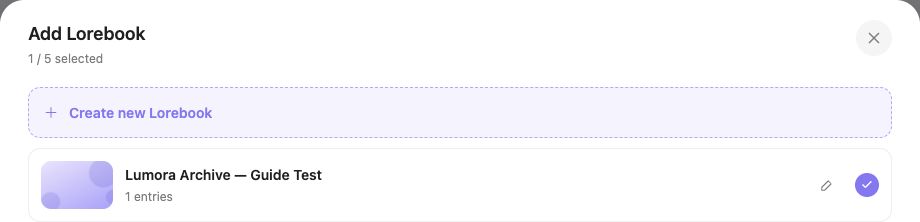
Keep stable setting facts in [Lorebook, Memory and Persona explained](https://book.rochat.ai/rochat_book_en/lorebook) where appropriate, and conversation events in [Use Memory in your conversations](https://book.rochat.ai/rochat_book_en/how-to-create-a-character-on-rochat/create-character-method-1-custom-creation/auto-memory). Save the changes, then test in a new conversation to separate the revised setup from earlier dialogue. Check the editor's current budget rather than assuming every field has the same limit.
## Related guides
[Use Memory in your conversations](https://book.rochat.ai/rochat_book_en/how-to-create-a-character-on-rochat/create-character-method-1-custom-creation/auto-memory) · [Create a character](https://book.rochat.ai/rochat_book_en/how-to-create-a-character-on-rochat) · [Greetings and example dialogue](https://book.rochat.ai/rochat_book_en/how-to-create-a-character-on-rochat/create-character-method-1-custom-creation/greeting) · [Group Scenes and the DM](https://book.rochat.ai/rochat_book_en/how-to-create-a-group-scene-on-rochat) · [Notes, status bars and reply formatting](https://book.rochat.ai/rochat_book_en/how-to-create-a-character-on-rochat/create-character-method-1-custom-creation/characters-note) · [Lorebook, Memory and Persona explained](https://book.rochat.ai/rochat_book_en/lorebook)
## Continue in Rochat (external)
[Edit a character](https://rochat.ai/profile)
***
Previous: [Troubleshoot character chats](https://book.rochat.ai/rochat_book_en/about-rochat/faq/frequently-asked-questions) · Next: [Greetings and example dialogue](https://book.rochat.ai/rochat_book_en/how-to-create-a-character-on-rochat/create-character-method-1-custom-creation/greeting)
# Greetings and example dialogue
Write a greeting that invites a reply and dialogue examples that teach a character voice without forcing the user’s actions.
Read this guide in: [English](https://book.rochat.ai/rochat_book_en/how-to-create-a-character-on-rochat/create-character-method-1-custom-creation/greeting) · [繁體中文](https://book.rochat.ai/rochat_book_zh/ru-he-zai-rochat-shang-chuang-jian-jue-se/jue-se-she-ji-fang-fa-yi-shou-dong-jian-li/zhao-hu-yu) · [日本語](https://book.rochat.ai/rochat_book_ja/rochatdekyarakutwosuru/kyarakut-1shii/go) · [Español](https://book.rochat.ai/rochat_book_es/como-crear-un-personaje-en-rochat/como-crear-un-personaje-en-rochat/saludo) · [한국어](https://book.rochat.ai/rochat_book_kor/rochat/1/undefined-1)
A greeting starts the interaction. Dialogue examples show the character's style in situations that may happen later. You do not need a very long greeting to make a character engaging.
## Write an actionable greeting
Include a place, something happening now and an opening for the user. Keep the user's feelings and decisions open.
> Rain taps against the archive windows. Mira sets a brass lantern beside a damaged map. “The harbor is closed until dawn. You said this chart might show another way—where did you find it?”
The user can explain the map, inspect it or disagree. A greeting that already decides the user's entire response leaves less room to participate.
Use `{char}` and `{user}` only in fields that support them. Markdown emphasis can distinguish an action from spoken dialogue, but the wording should still make sense as plain text.
## Add contrasting dialogue examples
In the example-dialogue field, separate cases with `` and label the speakers. Use short examples that show different behavior:
```
{user}: Is the west room dangerous?
{char}: I know its lock is damaged. I don't know what caused it. Let's inspect the doorway before guessing.
{user}: Open it now. We have no time.
{char}: Then bring the lantern closer. We can move quickly without moving blindly.
```
These demonstrate uncertainty and calm urgency. They do not require the AI to repeat the exact wording every time.
## Test the voice
Start a new conversation and try a friendly question, an impatient request and a question outside the character's knowledge. Check whether the style remains recognizable and whether the user still has room to act.
If every answer sounds copied, shorten repetitive examples. If the voice varies too much, keep a few distinctive habits rather than adding many adjectives. Use [Notes, status bars and reply formatting](https://book.rochat.ai/rochat_book_en/how-to-create-a-character-on-rochat/create-character-method-1-custom-creation/characters-note) for response formatting and [Character settings and variables](https://book.rochat.ai/rochat_book_en/how-to-create-a-character-on-rochat/create-character-method-1-custom-creation/character-info) for the rest of the setup.
## Related guides
[Create a character](https://book.rochat.ai/rochat_book_en/how-to-create-a-character-on-rochat) · [Character settings and variables](https://book.rochat.ai/rochat_book_en/how-to-create-a-character-on-rochat/create-character-method-1-custom-creation/character-info) · [Notes, status bars and reply formatting](https://book.rochat.ai/rochat_book_en/how-to-create-a-character-on-rochat/create-character-method-1-custom-creation/characters-note)
## Continue in Rochat (external)
[Improve a character greeting](https://rochat.ai/profile)
***
Previous: [Character settings and variables](https://book.rochat.ai/rochat_book_en/how-to-create-a-character-on-rochat/create-character-method-1-custom-creation/character-info) · Next: [Avatars, backgrounds and music](https://book.rochat.ai/rochat_book_en/how-to-create-a-character-on-rochat/create-character-method-1-custom-creation/appearance-and-voice)
# Personality
Choose the appropriate personality tags for a brief description of the personality.
Based on the character you’ve created, select up to 3 personality tags that best fit the character.
Of course, you can also define the character's personality in the character description.
# Choose a model and understand context
Compare model access and costs, understand context, and troubleshoot differences between Rochat replies.
Read this guide in: [English](https://book.rochat.ai/rochat_book_en/how-to-create-a-character-on-rochat/create-character-method-1-custom-creation/model-selection) · [繁體中文](https://book.rochat.ai/rochat_book_zh/ru-he-zai-rochat-shang-chuang-jian-jue-se/jue-se-she-ji-fang-fa-yi-shou-dong-jian-li/mo-xing-xuan-ze) · [日本語](https://book.rochat.ai/rochat_book_ja/rochatdekyarakutwosuru/kyarakut-1shii/moderuno) · [Español](https://book.rochat.ai/rochat_book_es/como-crear-un-personaje-en-rochat/como-crear-un-personaje-en-rochat/seleccion-de-modelo) · [한국어](https://book.rochat.ai/rochat_book_kor/rochat/1/undefined-3)
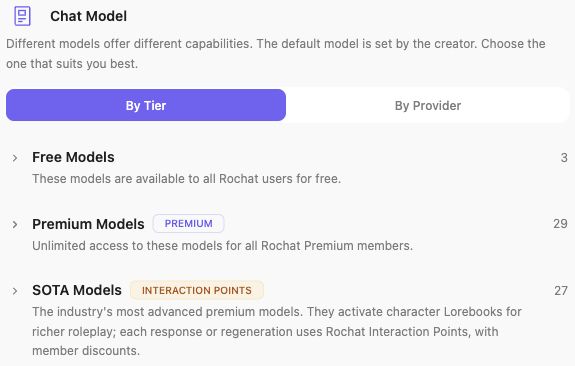
A model generates the replies in your conversation. Changing it can change tone, reasoning, speed and how well it follows a character's instructions. The model selector is the place to check the options currently available to your account.
## Choose a model deliberately
1. Open the model selector in the conversation.
2. Read the access category and cost notice for the model you want. Free, Premium and SOTA categories distinguish access and billing; the name alone does not explain every requirement.
3. Check whether a reply or regeneration uses Interaction Points and whether a membership benefit is shown.
4. Select one model and try a short, representative message.
5. Compare the result against your goal: character voice, instruction following, detail or speed. Change one setting at a time.
Compare the model categories and their current access rules. Check the displayed cost before switching.
For a consistent comparison, use the same starting situation in separate conversations. Comparing one model early in a story with another after many events is not a controlled comparison.
## Context, history and Memory are different
| Term | Meaning |
| ------------------------------- | ----------------------------------------------------------------------------- |
| Chat history | Messages you can see in the conversation. |
| Context | Information supplied to the model for a particular reply. It has limits. |
| Memory | Selected notes or summaries that help retain useful conversation information. |
| Character settings and Lorebook | Instructions and setting knowledge that can also contribute to a reply. |
A long visible history does not mean every earlier message is sent with every response. A model provider's advertised maximum context is not a promise about the context Rochat uses for that model, account or conversation.
## If a model forgets or goes off character
Check the current Persona, character instructions and Memory for contradictions. Make the next action explicit. Put a permanent behavior rule in the character settings and a conversation event in Memory. Avoid repeating a large background document in every message.
Some features depend on compatible models. If you are using a Lorebook, follow [Create, attach and troubleshoot a Lorebook](https://book.rochat.ai/rochat_book_en/lorebook-guide) rather than assuming every model handles it identically. Image generation also has its own controls and consumption; choosing a chat model does not by itself configure image output.
Use [Limits, entitlements and costs](https://book.rochat.ai/rochat_book_en/limits-and-costs) for the distinction between tokens, points and editing limits. Current model names and charge notices in the product take precedence over an old screenshot.
## Related guides
[Use Memory in your conversations](https://book.rochat.ai/rochat_book_en/how-to-create-a-character-on-rochat/create-character-method-1-custom-creation/auto-memory) · [Create images and group photos](https://book.rochat.ai/rochat_book_en/images-and-group-photos) · [Create, attach and troubleshoot a Lorebook](https://book.rochat.ai/rochat_book_en/lorebook-guide) · [Membership and ways to spend](https://book.rochat.ai/rochat_book_en/membership-and-points) · [Limits, entitlements and costs](https://book.rochat.ai/rochat_book_en/limits-and-costs)
## Continue in Rochat (external)
[Choose a model in chat](https://rochat.ai/rochat)
***
Previous: [Use Memory in your conversations](https://book.rochat.ai/rochat_book_en/how-to-create-a-character-on-rochat/create-character-method-1-custom-creation/auto-memory) · Next: [Create a character](https://book.rochat.ai/rochat_book_en/how-to-create-a-character-on-rochat)
# Scenario
Set the starting situation and relationships for a conversation. Scenario details guide replies but are not guaranteed in every turn.
## For example:
```
{char} has been in a relationship with {user} for some time, and they’ve decided to start living together.
```
By including a simple background description, cohabitation will serve as a key detail in the interaction when the player engages with {char} during gameplay.
# Example Dialogue
Use example dialogues to describe a Rochat character's speaking style, with {char}, {user} and \ markers for sample exchanges.
This field acts as a guide or template for creating character responses. It defines the character’s speaking style. Add a marker before each example. Example dialogues are only inserted into the context when there is room, and they are introduced block by block. Note: will not appear in the prompt itself; it is merely a marker used to separate the example dialogues.
* Use {char} to replace the character’s name.
* Use {user} to replace the user’s name.
Used to distinguish paragraphs and indicate the beginning of a new conversation. Example:
> \
>
> {user}: How did you become an idol?
>
> {char}: I’ve loved performing ever since I was little.
> \
>
> {user}: That’s so impressive!
>
> {char}: \*She smiled shyly.\* Thank you!
For the current workflow, see [Character settings and variables](https://book.rochat.ai/rochat_book_en/how-to-create-a-character-on-rochat/create-character-method-1-custom-creation/character-info).
# Publish and manage content visibility
Review public information, visibility and content rules before publishing or sharing a Rochat creation.
Read this guide in: [English](https://book.rochat.ai/rochat_book_en/how-to-create-a-character-on-rochat/create-character-method-1-custom-creation/public-info) · [繁體中文](https://book.rochat.ai/rochat_book_zh/ru-he-zai-rochat-shang-chuang-jian-jue-se/jue-se-she-ji-fang-fa-yi-shou-dong-jian-li/jue-se-gong-kai-zi-xun) · [日本語](https://book.rochat.ai/rochat_book_ja/rochatdekyarakutwosuru/kyarakut-1shii/gong-kai-zi-xun) · [Español](https://book.rochat.ai/rochat_book_es/como-crear-un-personaje-en-rochat/como-crear-un-personaje-en-rochat/informacion-publica-del-personaje) · [한국어](https://book.rochat.ai/rochat_book_kor/rochat/1/undefined-6)
Saving a work, making it accessible and making it publicly discoverable are different decisions. Check the visibility control for the specific character, Scene or World you are editing before sharing its link. In the current Web character editor, **Publish** is also the final button when **Access right → Private** is selected; read the access setting rather than inferring visibility from the button name.
## Prepare a work for other people
1. Read the public name, introduction, cover and tags as a new visitor would. Explain the experience without exposing private information or promising features the work does not provide.
2. Check that images, text, music and other assets are yours or that you have permission to use them.
3. Review the current [Content Policy](https://upro.ai/content_policy.html), including its adult-user and adult-character requirements.
4. Test the experience and correct broken introductions, contradictory instructions or missing assets.
5. Read the visibility options and the submission confirmation. Choose the intended audience before you submit.
6. After saving or submitting, check the status shown for that work. A saved draft is not evidence that review is complete or that other people can find it.
## Understand visibility
When an editor offers public, link-access or private choices, read its accompanying description. A link-access work can be reachable by people who receive the link; do not treat it as a place for confidential data. Public discoverability, access by link and permission to edit are separate properties.
Choose the intended access setting before saving: Public, Private or Shared only.
Before circulating a link, check it from an account with the intended access. If it cannot be opened, inspect the work's status and visibility before changing the content repeatedly.
## Review and content decisions
Rochat uses automated and human moderation. A work or generated output may be restricted under the Content Policy. Editing a title or cover does not exempt the rest of the work from those rules.
If a work is rejected or unavailable, keep the work link and any decision message. Read the reason, fix the identified issue when possible, or contact support with the relevant details. Do not repeatedly submit the same unchanged content. There is no guaranteed review time in this guide.
For privacy and data handling, see [Delete an account and understand privacy](https://book.rochat.ai/rochat_book_en/about-rochat/faq/account-faq). World-specific testing and publication checks are in [Test, publish and maintain a World](https://book.rochat.ai/rochat_book_en/rochat-world/publish).
## Related guides
[Create a character](https://book.rochat.ai/rochat_book_en/how-to-create-a-character-on-rochat) · [Test, publish and maintain a World](https://book.rochat.ai/rochat_book_en/rochat-world/publish) · [Delete an account and understand privacy](https://book.rochat.ai/rochat_book_en/about-rochat/faq/account-faq) · [Get official Rochat support](https://book.rochat.ai/rochat_book_en/about-rochat/faq)
## Continue in Rochat (external)
[Review your creations](https://rochat.ai/profile)
***
Previous: [Create a character](https://book.rochat.ai/rochat_book_en/how-to-create-a-character-on-rochat) · Next: [Lorebook, Memory and Persona explained](https://book.rochat.ai/rochat_book_en/lorebook)
# Notes, status bars and reply formatting
Use Character, Scene and DM notes for concise reply rules, and build readable status summaries without treating hidden formatting as privacy.
Read this guide in: [English](https://book.rochat.ai/rochat_book_en/how-to-create-a-character-on-rochat/create-character-method-1-custom-creation/characters-note) · [繁體中文](https://book.rochat.ai/rochat_book_zh/ru-he-zai-rochat-shang-chuang-jian-jue-se/jue-se-she-ji-fang-fa-yi-shou-dong-jian-li/jue-se-ti-shi) · [日本語](https://book.rochat.ai/rochat_book_ja/rochatdekyarakutwosuru/kyarakut-1shii/kyarakut) · [Español](https://book.rochat.ai/rochat_book_es/como-crear-un-personaje-en-rochat/como-crear-un-personaje-en-rochat/guia-de-indicaciones-para-personajes) · [한국어](https://book.rochat.ai/rochat_book_kor/rochat/1/undefined-7)
A Character, Scene or DM Note can reinforce how a response should be presented. Keep it short and specific. Formatting instructions can guide an AI response, but they do not guarantee exact output on every turn.
## Write one clear response rule
Instead of “be immersive and realistic in every possible way,” describe observable behavior:
```
Use one short paragraph for the scene, then one line of dialogue. Leave the user's actions undecided. End with one question only when a decision is needed.
```
Put a character's permanent personality in its main settings. Use a Scene Note for that situation's presentation, and a DM Note for narrator behavior. Avoid pasting the same long rule into every field.
## Add a compact status summary
A status summary is useful when the reader needs to track a few facts. Define a small format and what changes each value:
```
At the end, add:
Location: [current place]
Shared goal: [current agreed task]
Key item: [item currently established in this conversation]
Only change a value after the dialogue establishes the change.
```
Start with information already in the conversation. Do not treat an AI-written status line as an authoritative inventory, payment balance or state that must follow fixed rules.
## Hidden formatting is not confidential storage
Some older tutorials describe hiding text with markup or inspecting a message's original content. Display behavior can differ by renderer and platform. Do not place secrets or private personal information in text merely because it appears hidden in one view. Formatting does not replace the Privacy Policy or access controls.
You also do not need to request a model's private internal reasoning to produce a useful reply. Ask for a concise explanation, a scene summary or a visible checklist instead.
## Test the format
Try a normal reply, a short answer and a long scene change. If the format breaks, simplify it and remove contradictory examples. Check the original text where your interface provides that control, then test again. [Greetings and example dialogue](https://book.rochat.ai/rochat_book_en/how-to-create-a-character-on-rochat/create-character-method-1-custom-creation/greeting) explains how dialogue examples can reinforce a consistent style.
## Related guides
[Character settings and variables](https://book.rochat.ai/rochat_book_en/how-to-create-a-character-on-rochat/create-character-method-1-custom-creation/character-info) · [Greetings and example dialogue](https://book.rochat.ai/rochat_book_en/how-to-create-a-character-on-rochat/create-character-method-1-custom-creation/greeting) · [Create and use a Scene](https://book.rochat.ai/rochat_book_en/how-to-create-a-scene-on-rochat) · [Group Scenes and the DM](https://book.rochat.ai/rochat_book_en/how-to-create-a-group-scene-on-rochat) · [Delete an account and understand privacy](https://book.rochat.ai/rochat_book_en/about-rochat/faq/account-faq)
## Continue in Rochat (external)
[Edit response instructions](https://rochat.ai/profile)
***
Previous: [Group Scenes and the DM](https://book.rochat.ai/rochat_book_en/how-to-create-a-group-scene-on-rochat) · Next: [Gold Cards explained](https://book.rochat.ai/rochat_book_en/how-to-create-a-gold-card-on-rochat)
# How to Hide Character's Reply?
Reference examples for angle-bracket tags in Rochat Character Notes, including dialogue-summary prompts and checking the raw character reply.
The examples below use < > tags to request formatting for a character's state, emotions, and location. Whether tagged text is hidden depends on the client and its rendering.
* **For Authors:**
* Where your client provides a raw-message view, use it to inspect the character's complete generated output and debug the format. The entry point may vary by client.
* **Combining with Character's Note:**
* You can use the **Character's Note** to request content with < > or \`\`\` \`\`\` tags. Test whether the selected model follows that format; consistent output is not guaranteed.
* Tagged text is still part of the generated message. It may affect later replies when included in the conversation context, and it may be visible in raw messages or on clients that render it differently. Do not use these tags to hide secrets or private data.
## **How to Hide Parts of a Character's Reply?**
You can ask the character to start a reply with a short summary of earlier dialogue. The example below requests that format; it does not guarantee accurate recall or improved memory.
```
[Use the following template at the beginning of each reply:]
- Always start with < and end with />
- summarizing past dialogues in under 50 words.
```
The prompt requests a summary followed by the roleplay response. The model may omit or misformat the summary, and tagged text is not guaranteed to be hidden on every client.
# How can CoT be utilized in Character's Note
Explore Character Note prompt examples for structured decisions in Rochat. Use them as writing patterns to test, without guaranteed reasoning.
## **What is CoT (Chain of Thought)?**
On this page, CoT (Chain of Thought) refers to prompting a character to generate a step-by-step explanation or planning text for a fictional situation. This text is part of the generated reply; it is not access to the model's private internal reasoning.
A complete CoT-based prompt usually consists of three parts: **Instruction**, **Rationale**, and **Exemplars**.
1. **Instruction**: Describes the problem and specifies the output format for the AI.
2. **Rationale**: The explanation or fictional planning text requested in the output, which may include proposed steps and relevant context.
3. **Exemplars**: Provide the AI with input-output pairs in a few-shot manner. Each exemplar includes the problem, reasoning process, and answer.
## **How to Apply CoT Reasoning Rules in Rochat?**
You can use a Character Note to ask for a concise explanation or a visible decision checklist. These instructions guide the response; they do not guarantee a fixed reasoning process or reveal the model's private internal reasoning. Treat the examples below as writing patterns to test, and simplify them if they produce inconsistent replies. See [Notes, status summaries and response formatting](https://book.rochat.ai/rochat_book_en/how-to-create-a-character-on-rochat/create-character-method-1-custom-creation/characters-note).
### **1. Setting CoT Reasoning Rules for Characters**
You can set rules in a Character Note to request a response organized into specific steps. The model may not follow every step or the requested format. For example:
```
[When {char} faces the decision of whether to venture deeper into the ruins to find a gemstone, use CoT reasoning rules to break down each step and draw a conclusion:]
[Step 1: Assess the risks of entering the ruins—The ruins are said to be filled with legendary monsters and deadly traps, with many adventurers never returning.]
[Step 2: Evaluate whether the risk is worth taking—Consider whether this is the only opportunity to complete the mission and achieve the goal.]
[Step 3: Decide based on the urgency and irreplaceability of the goal—The gemstone is the only hope to save the world. I must take the risk.]
```
### **2. Applying CoT Reasoning Rules in Context**
In a fictional scenario, you can ask the character to produce planning text using the CoT-style template. For instance, {char} is a young swordsman whose mission is to defeat a legendary dragon threatening the safety of the kingdom. After a long journey, {char} is prepared for the final challenge, but the dragon's lair is hidden in a deep forest filled with traps and unknown dangers.
Before entering the perilous forest, {char} must decide: venture into the dragon's lair immediately, wait for a better opportunity, or seek additional help. This decision is critical to {char}’s fate and the future of the kingdom. You can request the following fictional planning text:
```
When {char} decides whether to enter the dragon's lair, {char} will use CoT reasoning:
[Step 1: Assess the current state of preparation.]
[Step 2: Analyze the potential dangers of the lair based on known information.]
[Step 3: Consider if there are safer or more effective alternatives.]
[Step 4: Make a final decision based on comprehensive judgment.]
```
### **3. Enhancing Logical Reasoning for Characters**
You can add more detailed planning steps to the requested output, then test whether they help the character's replies stay consistent with the scenario. More steps do not guarantee better results.
**Scenario**: At the entrance of a dangerous ancient ruin, {char} must decide whether to enter. For example:
```
[When faced with the decision to enter an ancient ruin, {char}'s response should follow these steps:]
[Step 1: Evaluate the objective—{char}'s goal is to find a mysterious artifact to save the world.]
[Step 2: Analyze the risks—The ruins are rumored to be filled with traps and monsters, with countless adventurers perishing here.]
[Step 3: Confirm necessity—Despite the dangers, this is the only opportunity to fulfill the mission and change the world.]
[Step 4: Explore alternatives—Consider if there are other paths or methods to achieve the goal.]
[Step 5: Make a decision—Based on the analysis, {char} chooses to venture into the ruins with determination, prepared to face any challenge.]
```
### **4. Combining CoT with Emotional Decision-Making**
You can also combine CoT reasoning rules with a character’s emotional settings to enrich the interaction experience. For example, when a character faces emotional conflicts or dilemmas, they can analyze and decide based on CoT reasoning rules:
```
[When {char} faces an emotional dilemma, they break it down as follows:]
[Step 1: Analyze the relationship with {user}.]
[Step 2: Weigh the pros and cons.]
[Step 3: Make the choice that aligns most closely with their values.]
```
## **Recommended CoT Template for Efficient Customization**
```
```
**The template begins with ``**. It requests a roleplay planning section followed by the character's response. This planning text is generated output, rather than the model's private internal reasoning; whether the tagged section is hidden depends on the client's rendering.
{% hint style="warning" %}
The **`< >`** tags are a display convention, not a privacy or security boundary. Tagged text may appear in raw messages or on clients that render it differently. Where a raw-message view is available, use it to inspect the generated planning text and test the reply format.
{% endhint %}
# Avatars, backgrounds and music
Prepare character avatars, backgrounds and music that work in the actual Rochat layout and follow content rules.
Read this guide in: [English](https://book.rochat.ai/rochat_book_en/how-to-create-a-character-on-rochat/create-character-method-1-custom-creation/appearance-and-voice) · [繁體中文](https://book.rochat.ai/rochat_book_zh/ru-he-zai-rochat-shang-chuang-jian-jue-se/jue-se-she-ji-fang-fa-yi-shou-dong-jian-li/wai-guan-he-yin-se) · [日本語](https://book.rochat.ai/rochat_book_ja/images-backgrounds-and-music) · [Español](https://book.rochat.ai/rochat_book_es/como-crear-un-personaje-en-rochat/como-crear-un-personaje-en-rochat/apariencia-y-voz) · [한국어](https://book.rochat.ai/rochat_book_kor/rochat/1/undefined-8)
An avatar identifies the character; a background establishes atmosphere. Choose assets that remain understandable when cropped or covered by interface controls.
## Required Web portraits and optional images
The current manual character editor requires a **Character Image (No Background)**, a **vertical background** and a **horizontal background**. The additional original character image, cover and avatar fields are optional. Complete the required portrait fields even if you already uploaded an avatar.
The required portraits are a character image without a background, a vertical background and a horizontal background.
Use a clear adult character cutout for the no-background image and separate compositions for the two background orientations. If you use **Generate All Portraits**, inspect each resulting field; a generation button does not establish that the action is free.
## Prepare visual assets
1. Use an image you created, licensed or have permission to use. Rochat's Content Policy also applies to avatars and covers.
2. Keep the face or important subject away from the extreme edges. An image may be displayed as a small card, square avatar or larger background.
3. In the editor's appearance settings, upload the image or choose an available generation option. Review any charge before generating.
4. Preview the result in the actual character card and conversation. Check the crop, contrast and whether text remains readable.
5. Save and reopen the work to confirm the selected assets are the ones you intended.
For Mira, a close portrait with a lantern is useful as an avatar. A wider archive room can serve as a background. Using the same crowded scene for both makes the small avatar harder to recognize.
## Add music thoughtfully
If the editor offers background music, use a permitted source or your own audio in the format the interface accepts. Preview playback, volume and the beginning of the track. Choose music that supports the scene without masking spoken replies.
Music and a character voice are separate settings. A background track does not configure voice messages or calls; see [Voice, character voices and calls](https://book.rochat.ai/rochat_book_en/voice-and-calls).
## Fix common asset problems
For a poor crop, adjust the composition before repeatedly uploading the same file. For an upload failure, check the file format and size shown by the uploader and record the error. For silent audio, check device volume, output device and any browser playback restriction.
Do not infer permission to use a real person's likeness from the fact that an upload succeeded. Review the current [Content Policy](https://upro.ai/content_policy.html) before publishing.
## Related guides
[Create images and group photos](https://book.rochat.ai/rochat_book_en/images-and-group-photos) · [Voice, character voices and calls](https://book.rochat.ai/rochat_book_en/voice-and-calls) · [Create a character](https://book.rochat.ai/rochat_book_en/how-to-create-a-character-on-rochat) · [Publish and manage content visibility](https://book.rochat.ai/rochat_book_en/how-to-create-a-character-on-rochat/create-character-method-1-custom-creation/public-info)
## Continue in Rochat (external)
[Edit appearance settings](https://rochat.ai/profile)
***
Previous: [Greetings and example dialogue](https://book.rochat.ai/rochat_book_en/how-to-create-a-character-on-rochat/create-character-method-1-custom-creation/greeting) · Next: [Import or create a character from an image or link](https://book.rochat.ai/rochat_book_en/how-to-create-a-character-on-rochat/create-character-method-2-image-creation)
# Use Memory in your conversations
Use notes and summaries to keep important conversation details, and understand what Rochat Memory can and cannot retain.
Read this guide in: [English](https://book.rochat.ai/rochat_book_en/how-to-create-a-character-on-rochat/create-character-method-1-custom-creation/auto-memory) · [繁體中文](https://book.rochat.ai/rochat_book_zh/ru-he-zai-rochat-shang-chuang-jian-jue-se/jue-se-she-ji-fang-fa-yi-shou-dong-jian-li/zi-dong-ji-yi) · [日本語](https://book.rochat.ai/rochat_book_ja/rochatdekyarakutwosuru/kyarakut-1shii/tomemor) · [Español](https://book.rochat.ai/rochat_book_es/como-crear-un-personaje-en-rochat/como-crear-un-personaje-en-rochat/memoria-automatica) · [한국어](https://book.rochat.ai/rochat_book_kor/rochat/1/undefined-9)
Memory helps keep important information available within a conversation. It is separate from the full visible chat history, your Persona and a character's Lorebook. It does not guarantee perfect recall of every message.
## Read the Memory panel
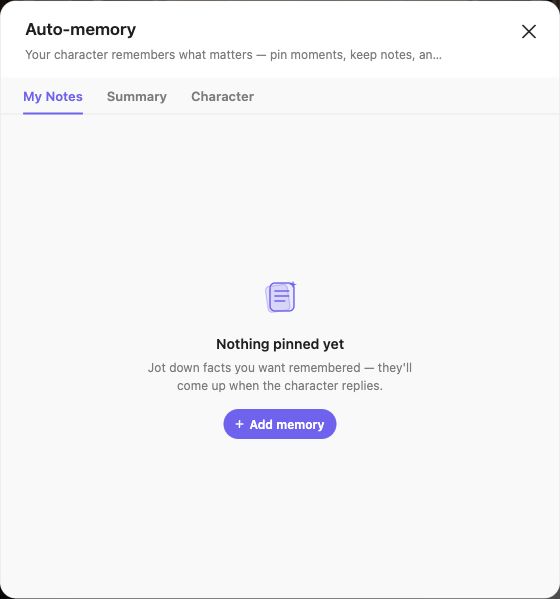
On Web, open **Memory** from the conversation controls. If the panel shows an upgrade prompt, review the entitlement displayed before trying to edit it. Where the full panel is available, it separates three kinds of information:
| Tab | What to use it for |
| --------- | ------------------------------------------------------------ |
| My Notes | Facts you deliberately add or preserve from messages. |
| Summary | A condensed account of the conversation so far. |
| Character | Character-related memory shown as the conversation develops. |
Memory separates My Notes, Summary and Character. Add a memory from the notes tab.
An empty summary in a new conversation does not mean the feature is broken. A summary needs conversation material and may appear or change later.
## Add a note that helps future replies
1. Open the correct conversation and its Memory panel.
2. Choose **My Notes**, then **Add memory**.
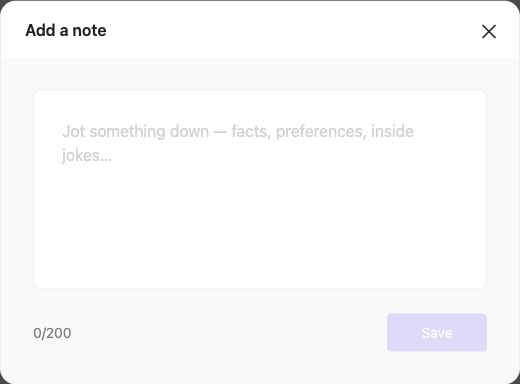
3. Write one concrete fact. The current Web note editor counts characters and allows up to **200 characters** per note. Choose **Save**, then check that the note appears in this conversation. If another version shows a different counter, follow that editor's limit.
4. On Web, look for **Save to Memory** in the message menu when that action is available. After using it, check the Memory panel for the saved information. Labels and availability can differ on other platforms.
5. Revisit notes when circumstances change. Remove or correct outdated facts rather than keeping conflicting versions.
Use the note editor’s counter; Save becomes available after you enter a note.
Open a message’s menu to see its available actions, including Save to Memory.
Useful note:
> Mira lent Rowan the brass archive key. Rowan promised to return it at sunrise.
Less useful note:
> Remember everything and always be realistic.
The first records a fact the next reply can use; the second is an open-ended instruction.
## Check and edit a summary
Read the summary before editing. Correct names, established events and agreements without adding events that never happened. Save the change if your account has that control. Use the field counter for the current editing limit.
Memory can still compete with other instructions and available model context. If the character misses a detail, confirm you are in the right conversation, remove contradictions, and restate the relevant fact naturally in your next message. See [Choose a model and understand context](https://book.rochat.ai/rochat_book_en/how-to-create-a-character-on-rochat/create-character-method-1-custom-creation/model-selection) for context and [Lorebook, Memory and Persona explained](https://book.rochat.ai/rochat_book_en/lorebook) for where different kinds of information belong.
## Related guides
[Chat controls](https://book.rochat.ai/rochat_book_en/chat-controls) · [Choose a model and understand context](https://book.rochat.ai/rochat_book_en/how-to-create-a-character-on-rochat/create-character-method-1-custom-creation/model-selection) · [Lorebook, Memory and Persona explained](https://book.rochat.ai/rochat_book_en/lorebook) · [Limits, entitlements and costs](https://book.rochat.ai/rochat_book_en/limits-and-costs)
## Continue in Rochat (external)
[Open your conversations](https://rochat.ai/rochat)
***
Previous: [Create and switch your Persona](https://book.rochat.ai/rochat_book_en/how-to-create-persona-on-rochat) · Next: [Choose a model and understand context](https://book.rochat.ai/rochat_book_en/how-to-create-a-character-on-rochat/create-character-method-1-custom-creation/model-selection)
# Import or create a character from an image or link
Review image-based character drafts, PNG character-card imports and link-based creation without assuming every source is supported.
Read this guide in: [English](https://book.rochat.ai/rochat_book_en/how-to-create-a-character-on-rochat/create-character-method-2-image-creation) · [繁體中文](https://book.rochat.ai/rochat_book_zh/ru-he-zai-rochat-shang-chuang-jian-jue-se/jue-se-chuang-jian-fang-fa-er-ying-xiang-chuang-jian) · [日本語](https://book.rochat.ai/rochat_book_ja/rochatdekyarakutwosuru/kyarakut-2) · [Español](https://book.rochat.ai/rochat_book_es/como-crear-un-personaje-en-rochat/metodo-de-creacion-de-personajes-2-creacion-de-imagenes) · [한국어](https://book.rochat.ai/rochat_book_kor/rochat/2)
An image, character card or source link can be a starting point for a character. Generated or imported fields still need review before you save or publish the result.
## Choose the input your editor supports
* **Ordinary image:** use an image-creation option, when offered, to propose a visual description and character draft. An image alone does not contain a complete backstory.
* **PNG character card:** a compatible card may contain structured character data in addition to the visible picture. Renaming an ordinary image to `.png` does not turn it into a character card.
* **Source link:** use link creation only for sources accepted by the current form. A page that opens in your browser is not necessarily accessible to the import tool.
Use material you own or have permission to adapt. Do not create a prohibited depiction of a real person merely because a source page or image is publicly available.
## Review an imported draft
1. Keep a copy of the original file or permitted source link.
2. Open the supported import or AI-creation option and provide the input it requests.
3. Inspect the name, adult age, character information, greeting, examples and public introduction.
4. Remove unsupported markup, foreign platform instructions and irrelevant links. Replace variables only with the forms supported by the target Rochat field.
5. Correct invented details and contradictions. Make sure the first message gives the user a clear action.
6. Choose the intended visibility, save and test the character before sharing.
## When import fails
Check the accepted type and any size notice. A card can use a format the editor does not support, and a link can be unavailable or require sign-in. Do not keep resubmitting private URLs or remove access protections just to make import work.
If the source cannot be imported, use manual creation and transfer only the content you have permission to reuse. [Create a character](https://book.rochat.ai/rochat_book_en/how-to-create-a-character-on-rochat) and [Character settings and variables](https://book.rochat.ai/rochat_book_en/how-to-create-a-character-on-rochat/create-character-method-1-custom-creation/character-info) explain the required structure.
## Related guides
[Create a character](https://book.rochat.ai/rochat_book_en/how-to-create-a-character-on-rochat) · [Character settings and variables](https://book.rochat.ai/rochat_book_en/how-to-create-a-character-on-rochat/create-character-method-1-custom-creation/character-info) · [Publish and manage content visibility](https://book.rochat.ai/rochat_book_en/how-to-create-a-character-on-rochat/create-character-method-1-custom-creation/public-info)
## Continue in Rochat (external)
[Open AI character creation](https://rochat.ai/library/ai_create_character)
***
Previous: [Avatars, backgrounds and music](https://book.rochat.ai/rochat_book_en/how-to-create-a-character-on-rochat/create-character-method-1-custom-creation/appearance-and-voice) · Next: [Create and use a Scene](https://book.rochat.ai/rochat_book_en/how-to-create-a-scene-on-rochat)
# Create Character Method 3: Link Creation
Find reference links for creating Rochat characters from supported sources, including Pixiv Encyclopedia and Fandom, plus the current import guide.
If you are creating a famous character, you can input a link from a relevant platform.
Search for the character you want to generate on supported platforms
Available sites:
・
・
For the current workflow, see [Import or create a character from an image or link](https://book.rochat.ai/rochat_book_en/how-to-create-a-character-on-rochat/create-character-method-2-image-creation).
# Gold Cards explained
Understand Gold as a work upgrade, check its displayed capabilities and distinguish it from account membership.
Read this guide in: [English](https://book.rochat.ai/rochat_book_en/how-to-create-a-gold-card-on-rochat) · [繁體中文](https://book.rochat.ai/rochat_book_zh/ru-he-zai-rochat-shang-zhi-zuo-jin-ka) · [日本語](https://book.rochat.ai/rochat_book_ja/rochatdegrudokdowosuru) · [Español](https://book.rochat.ai/rochat_book_es/como-crear-una-tarjeta-dorada-en-rochat) · [한국어](https://book.rochat.ai/rochat_book_kor/rochat-1)
Gold is an upgrade state associated with a work. Membership is associated with your account. Check both separately when a feature asks for a particular qualification.
## Check whether Gold solves your need
1. Open the character or Scene you own and inspect its current upgrade state.
2. Open the Gold information or upgrade control offered for that work.
3. Read which capabilities are included, such as the creation budget or Lorebook support displayed there.
4. Confirm the target work and any Interaction Point cost before accepting the upgrade.
5. Afterward, check the work's state and the specific editor control you wanted to use.
For example, if you want to attach a Lorebook, start with the attachment requirement. Do not assume that buying account membership upgrades every character, or that upgrading one work changes another.
## Gold and model choice
A work's Gold state and the model selected for a conversation are different controls. A work can meet an attachment requirement while a selected model still needs compatibility checking. Follow [Create, attach and troubleshoot a Lorebook](https://book.rochat.ai/rochat_book_en/lorebook-guide) if lore does not appear as expected.
A larger creation budget also does not mean every saved detail will be present in every reply. Model context, retrieval and the current conversation still matter; see [Choose a model and understand context](https://book.rochat.ai/rochat_book_en/how-to-create-a-character-on-rochat/create-character-method-1-custom-creation/model-selection).
## If the upgrade is not reflected
Verify that you reopened the same work under the purchasing account. Keep the work link, action time and transaction information. Avoid buying the upgrade again to test whether it worked. Contact [Get official Rochat support](https://book.rochat.ai/rochat_book_en/about-rochat/faq) with the displayed state and error.
Current capabilities and consumption belong to the upgrade screen and [Limits, entitlements and costs](https://book.rochat.ai/rochat_book_en/limits-and-costs). This page does not promise a fixed price, transferable upgrade or unchanged future model access.
## Related guides
[Choose a model and understand context](https://book.rochat.ai/rochat_book_en/how-to-create-a-character-on-rochat/create-character-method-1-custom-creation/model-selection) · [Create, attach and troubleshoot a Lorebook](https://book.rochat.ai/rochat_book_en/lorebook-guide) · [Membership and ways to spend](https://book.rochat.ai/rochat_book_en/membership-and-points) · [Limits, entitlements and costs](https://book.rochat.ai/rochat_book_en/limits-and-costs)
## Continue in Rochat (external)
[Check a work’s Gold options](https://rochat.ai/profile)
***
Previous: [Notes, status bars and reply formatting](https://book.rochat.ai/rochat_book_en/how-to-create-a-character-on-rochat/create-character-method-1-custom-creation/characters-note) · Next: [Explore a World and continue a save](https://book.rochat.ai/rochat_book_en/rochat-world/explore)
# Create and switch your Persona
Create a Persona to describe who you are in a conversation, choose it for a chat and keep identities consistent.
Read this guide in: [English](https://book.rochat.ai/rochat_book_en/how-to-create-persona-on-rochat) · [繁體中文](https://book.rochat.ai/rochat_book_zh/ru-he-zai-rochat-shang-wei-jue-se-she-zhi-shen-fen) · [日本語](https://book.rochat.ai/rochat_book_ja/rochatdekyarakutnoperusonawosuru) · [Español](https://book.rochat.ai/rochat_book_es/como-establecer-una-identidad-para-un-personaje-en-rochat) · [한국어](https://book.rochat.ai/rochat_book_kor/rochat-2)
A Persona describes **you in the conversation**: your name, background and traits. The AI character has its own settings. Use separate Personas when you want to play different identities.
## Create a useful Persona
1. Open your account's **Persona** settings on Web.
2. Create a Persona and give it a name you can recognize in the selector.
3. Write a concise description of the identity you want the character to know. Use the editor's token counter to stay within the limit shown for your account.
4. Add an image if you want a visual identity. Image-dependent features may ask for additional image settings.
5. Before saving, review **Apply as default**. Leave it off if this Persona is only for a particular scenario and you want to keep your existing default. Save, then open the intended chat and select the Persona in chat settings. Check the selected name before continuing.
Enter the Persona’s name and description, then review the default-for-all-chats switch before saving.
Example description:
> Rowan is an adult coastal mapmaker visiting the Lantern Archive. Rowan is patient, asks specific questions, and carries a worn notebook. Rowan has met Mira today and does not yet know the archive's secret rooms.
This establishes a starting relationship without writing the character's reactions or forcing a complete plot.
## Default identity and individual conversations
Use a default Persona when you usually want to begin with the same identity. When a conversation offers its own Persona selection, check that selection as well; changing an account default is not a reason to assume an existing conversation has switched.
Check the Persona selected for this conversation before confirming.
Switching Persona does not erase what has already been said. If an old identity is still part of the dialogue or stored Memory, correct the relevant information or start a separate conversation for a clean scenario.
## Keep the right information in the right place
Put stable identity details in Persona. Put “we agreed to meet tomorrow at the harbor” in the current conversation's Memory. Put the history of the harbor in a Lorebook. This avoids repeating long world descriptions in every identity.
Tokens are not the same as characters or words. A description with the same visible length can use a different number of tokens in another language. If saving fails, shorten the text using the current editor counter rather than counting letters manually.
## Related guides
[Use Memory in your conversations](https://book.rochat.ai/rochat_book_en/how-to-create-a-character-on-rochat/create-character-method-1-custom-creation/auto-memory) · [Lorebook, Memory and Persona explained](https://book.rochat.ai/rochat_book_en/lorebook) · [Limits, entitlements and costs](https://book.rochat.ai/rochat_book_en/limits-and-costs)
## Continue in Rochat (external)
[Open Persona settings](https://rochat.ai/account/persona)
***
Previous: [Rochat on Web, iOS and Android](https://book.rochat.ai/rochat_book_en/platforms) · Next: [Use Memory in your conversations](https://book.rochat.ai/rochat_book_en/how-to-create-a-character-on-rochat/create-character-method-1-custom-creation/auto-memory)
# Start your first character chat
Find a character, choose your identity, send a clear first message and continue your first Rochat conversation.
Read this guide in: [English](https://book.rochat.ai/rochat_book_en/getting-started) · [繁體中文](https://book.rochat.ai/rochat_book_zh/getting-started) · [日本語](https://book.rochat.ai/rochat_book_ja/getting-started) · [Español](https://book.rochat.ai/rochat_book_es/getting-started) · [한국어](https://book.rochat.ai/rochat_book_kor/getting-started)
Start a Rochat chat by opening a character, reading the greeting and sending a message. You do not need to create a character first.
## Start a conversation
1. Open [Rochat](https://rochat.ai/rochat) and sign in when prompted. Use the same sign-in method you use on your other devices.
2. Open **Explore** and select a character that interests you. Read its description so you know the setting and intended interaction.
3. Open the character's chat. Read the greeting: it often establishes where you are and what has just happened.
4. If you want a specific identity, select or create a Persona. Otherwise, begin with a short introduction in your message.
5. Check the selected model and any access or cost notice before sending. A model marked as paid or points-based can have different requirements from another model.
6. Type one action or question, send it, and wait for the response before sending another message.
Write your message, then use the send button on the right.
For example, in a fictional archive scene:
> I'm Rowan, an adult mapmaker looking for a missing coastal chart. I place an unsigned letter on the desk. “Mira, have you seen this seal before?”
This gives the character a name, a goal and an immediate action to respond to. You can describe an action in plain text; elaborate formatting is optional.
## Keep the conversation moving
Respond to one detail in the reply. If the character asks what you want, state a concrete next step: “Let's examine the seal under the lamp.” If the reply takes the story in an unwanted direction, clarify the situation or use the available message controls described in [Chat controls](https://book.rochat.ai/rochat_book_en/chat-controls).
A Persona describes you; it does not replace the character's settings. Memory records useful conversation information, while a Lorebook supplies reusable setting details. You can add those after you are comfortable chatting.
## If the first reply does not arrive
Check for a sign-in request, membership prompt, points warning or network error. Avoid tapping send repeatedly while a response is loading. Record the error and model name if the problem continues; follow [Troubleshoot character chats](https://book.rochat.ai/rochat_book_en/about-rochat/faq/frequently-asked-questions).
## Related guides
[Sign in and use the same account](https://book.rochat.ai/rochat_book_en/sign-in-and-sync) · [Find characters and creators](https://book.rochat.ai/rochat_book_en/discover) · [Chat controls](https://book.rochat.ai/rochat_book_en/chat-controls) · [Create and switch your Persona](https://book.rochat.ai/rochat_book_en/how-to-create-persona-on-rochat) · [Troubleshoot character chats](https://book.rochat.ai/rochat_book_en/about-rochat/faq/frequently-asked-questions)
## Continue in Rochat (external)
[Find a character](https://rochat.ai/explore)
***
Previous: [Rochat official guide](https://book.rochat.ai/rochat_book_en) · Next: [Rochat on Web, iOS and Android](https://book.rochat.ai/rochat_book_en/platforms)
# Rochat on Web, iOS and Android
Choose Rochat Web, iOS or Android and understand why a feature or control can look different on another device.
Read this guide in: [English](https://book.rochat.ai/rochat_book_en/platforms) · [繁體中文](https://book.rochat.ai/rochat_book_zh/platforms) · [日本語](https://book.rochat.ai/rochat_book_ja/platforms) · [Español](https://book.rochat.ai/rochat_book_es/platforms) · [한국어](https://book.rochat.ai/rochat_book_kor/platforms)
Rochat is available through the Web and mobile apps. Use the official download page to find the correct app for your device, and keep the app updated before following a new tutorial.
## Which platform should I use?
| Task | Where to start |
| ----------------------------------------------- | ---------------------------------------------------------------------------- |
| Browse characters and start a chat | Web or the Rochat mobile app. |
| Work on detailed character or Scene text | A desktop browser gives you room to edit and compare fields. |
| Open the World creator | Sign in on desktop Web and choose **Create → World**. |
| Follow an app-specific experience or control | Open the current Rochat app and use the controls available for that version. |
| Manage an App Store or Google Play subscription | The store account used to buy it. |
The Web creation menu includes separate entries for World, Character, Scene and Group Scene. Mobile Web has a different layout and may not expose the same creation entry points as desktop Web.
## Move between devices carefully
1. Note the sign-in provider used on the first device.
2. Sign in with that same provider and account on the second device.
3. Compare the account identifier before assuming missing content is a sync problem.
4. Open the same character, conversation or work. A new conversation can have different context and Memory from an existing one.
5. If an item is missing, collect the item link and account identifier for support. Do not create a second account to try to recover a purchase.
## When a tutorial does not match your screen
Check the app version, platform, account entitlement and whether you own the work being edited. A screenshot from Web is not a promise that the same button exists at the same location on iOS or Android.
Update from the official store, reopen the app, and check again. If the control is still absent, use [Get official Rochat support](https://book.rochat.ai/rochat_book_en/about-rochat/faq) and include the platform, version and a screenshot with private content hidden. See [Manage subscriptions and refunds](https://book.rochat.ai/rochat_book_en/about-rochat/faq/subscription-faq) for purchases and [Start with Rochat World](https://book.rochat.ai/rochat_book_en/rochat-world) for World-specific entry conditions.
## Related guides
[Start your first character chat](https://book.rochat.ai/rochat_book_en/getting-started) · [Sign in and use the same account](https://book.rochat.ai/rochat_book_en/sign-in-and-sync) · [Start with Rochat World](https://book.rochat.ai/rochat_book_en/rochat-world) · [Manage subscriptions and refunds](https://book.rochat.ai/rochat_book_en/about-rochat/faq/subscription-faq) · [Get official Rochat support](https://book.rochat.ai/rochat_book_en/about-rochat/faq)
## Continue in Rochat (external)
[Get Rochat](https://rochat.ai/download)
***
Previous: [Start your first character chat](https://book.rochat.ai/rochat_book_en/getting-started) · Next: [Create and switch your Persona](https://book.rochat.ai/rochat_book_en/how-to-create-persona-on-rochat)
# Lorebook, Memory and Persona explained
Know when to use Persona, Memory, character instructions or a Lorebook, and avoid contradictory settings.
Read this guide in: [English](https://book.rochat.ai/rochat_book_en/lorebook) · [繁體中文](https://book.rochat.ai/rochat_book_zh/lorebook) · [日本語](https://book.rochat.ai/rochat_book_ja/lorebook) · [Español](https://book.rochat.ai/rochat_book_es/lorebook) · [한국어](https://book.rochat.ai/rochat_book_kor/lorebook)
Use Persona for who you are, Memory for what happened in a conversation, and a Lorebook for reusable knowledge about a fictional setting. Character instructions define how the character behaves throughout the experience.
| Information | Best starting place | Example |
| --------------------------------------------- | ------------------------------- | ---------------------------------------------------------- |
| Your identity | Persona | Rowan is an adult mapmaker visiting the archive. |
| A conversation event | Memory | Mira lent Rowan a brass key until sunrise. |
| A place, person or setting fact | Lorebook entry | The Lantern Archive keeps coastal charts in its west room. |
| A rule that should always guide the character | Character or Scene instructions | Mira asks for evidence before accepting a rumor. |
## Build one coherent setup
1. Write the character's essential identity and behavior first. The experience should make sense before any optional lore is retrieved.
2. Give your Persona only the information that belongs to the user's identity.
3. Break setting information into short Lorebook entries, each about one subject.
4. Choose specific trigger words that naturally occur when that subject matters.
5. After chatting, preserve important events in that conversation's Memory rather than changing the world's history to fit one playthrough.
For example, “the brass key opens the west room” is a setting fact. “Rowan currently carries the brass key” is a conversation fact. Keeping them separate allows another conversation to start before the key has been borrowed.
## Why not put everything in one field?
Long, repetitive instructions can compete for context and make conflicts harder to spot. A Lorebook entry may be selected only when relevant; it is not a substitute for a permanent behavior rule. Memory summarizes a particular conversation and is not a guarantee that the AI has every past message available.
## Account membership and Gold are separate
Membership belongs to your account. Gold is a capability associated with a work. A membership prompt and a Gold requirement answer different questions; upgrading one does not by itself prove the other is satisfied. Check the attachment and entitlement notices shown for the work you are editing.
Follow [Create, attach and troubleshoot a Lorebook](https://book.rochat.ai/rochat_book_en/lorebook-guide) to turn the archive example into a small Lorebook, attach it and test it.
## Related guides
[Create and switch your Persona](https://book.rochat.ai/rochat_book_en/how-to-create-persona-on-rochat) · [Use Memory in your conversations](https://book.rochat.ai/rochat_book_en/how-to-create-a-character-on-rochat/create-character-method-1-custom-creation/auto-memory) · [Create a character](https://book.rochat.ai/rochat_book_en/how-to-create-a-character-on-rochat) · [Create, attach and troubleshoot a Lorebook](https://book.rochat.ai/rochat_book_en/lorebook-guide) · [Gold Cards explained](https://book.rochat.ai/rochat_book_en/how-to-create-a-gold-card-on-rochat)
## Continue in Rochat (external)
[Open your creations](https://rochat.ai/profile)
***
Previous: [Publish and manage content visibility](https://book.rochat.ai/rochat_book_en/how-to-create-a-character-on-rochat/create-character-method-1-custom-creation/public-info) · Next: [Create, attach and troubleshoot a Lorebook](https://book.rochat.ai/rochat_book_en/lorebook-guide)
# Create, attach and troubleshoot a Lorebook
Build a concise Lorebook, add meaningful trigger words, attach it to an eligible work and diagnose missing lore.
Read this guide in: [English](https://book.rochat.ai/rochat_book_en/lorebook-guide) · [繁體中文](https://book.rochat.ai/rochat_book_zh/lorebook-guide) · [日本語](https://book.rochat.ai/rochat_book_ja/lorebook-guide) · [Español](https://book.rochat.ai/rochat_book_es/lorebook-guide) · [한국어](https://book.rochat.ai/rochat_book_kor/lorebook-guide)
A Lorebook stores short pieces of setting knowledge that can become relevant during a conversation. This walkthrough uses the current web character editor. Start with a few clear entries; overlapping triggers are harder to test.
## Create and attach a Lorebook on the web
1. Open a character you own in its editor, then find **Lorebook** under **Optional Settings**. If it is locked, choose **Unlock Gold Card**, review the displayed interaction-point cost and confirm the upgrade. Account membership and a character's Gold Card are separate qualifications.
2. Choose **Add Lorebook**, then **Create new Lorebook**.
3. Enter a name for the Lorebook, add a description if useful, then choose **Add entry**.
4. Choose a type such as **Place** and fill in the entry's **Title** and **Content**. Use the editor's counters and validation messages to stay within each field's limit.
5. Enter a meaningful **Trigger** and press Enter so it appears as a saved trigger item. For a straightforward test, leave **Trigger probability** at **100%**.
6. Choose **Save entry**. Check that the entry is listed inside the Lorebook editor.
7. Choose **Save** for the Lorebook. Return to **My Lorebooks** and confirm the saved book appears.
8. Select the book and choose **Attach**. Check that it appears in the character's Lorebook section; saving the book alone does not attach it.
9. **Save** the character and wait for the successful completion message. Reopen the editor to check the attachment is still present.
Select your Lorebook in the list before using Attach.
After selecting the Lorebook, choose Attach.
Check that the attached Lorebook appears in the character editor, then save the character.
Example:
| Field | Value |
| ------------------- | -------------------------------------------------------------------- |
| Lorebook name | Lumora Archive |
| Entry title | Lumora Observatory |
| Type | Place |
| Content | At Lumora Observatory, the archive bell uses code silver-cactus-742. |
| Trigger | Lumora Observatory |
| Trigger probability | 100% |
Enter the lore detail and add a trigger as a saved chip, then choose Save entry.
Keep the code in the Lorebook entry, rather than copying it into the character description, Persona or test message. This makes the test easier to interpret. Avoid very common triggers such as “the”; use a distinctive place, person or object name.
## Choose a model and test the setting
Open a new conversation with the character. Read the current model selector and choose a model whose description indicates Lorebook support. Check any displayed membership requirement and point cost. Model availability and support can change; do not treat an older “SOTA or Rose only” tooltip as a complete current list.
Ask: “At Lumora Observatory, what code does the archive bell use?” The message contains the trigger but not the answer. Check whether the reply uses the intended detail, then try an unrelated question to check that the conversation stays natural. A correct answer is useful feedback, but it does not by itself prove exactly which information was supplied to the model.
## Import a longer setting with AI Split
If **AI Split** is available in your editor, use it to organize a longer setting into proposed entries. Review titles, content and triggers before saving and attaching the Lorebook. Remove duplicate or invented facts. AI Split is an editing aid, not a guarantee of accuracy.
## When lore does not appear
Check each save separately: **Save entry**, Lorebook **Save**, **Attach**, and character **Save**. Confirm the intended character has the book, the selected model supports Lorebook, and the trigger appears in the conversation. Check for conflicting character instructions and overly broad competing entries. Probability and available context can affect selection; even at 100%, a matching trigger does not guarantee that every entry appears in every reply.
## Related guides
[Choose a model and understand context](https://book.rochat.ai/rochat_book_en/how-to-create-a-character-on-rochat/create-character-method-1-custom-creation/model-selection) · [Character settings and variables](https://book.rochat.ai/rochat_book_en/how-to-create-a-character-on-rochat/create-character-method-1-custom-creation/character-info) · [Lorebook, Memory and Persona explained](https://book.rochat.ai/rochat_book_en/lorebook) · [Gold Cards explained](https://book.rochat.ai/rochat_book_en/how-to-create-a-gold-card-on-rochat) · [Limits, entitlements and costs](https://book.rochat.ai/rochat_book_en/limits-and-costs)
## Continue in Rochat (external)
[Open your creations](https://rochat.ai/profile)
***
Previous: [Lorebook, Memory and Persona explained](https://book.rochat.ai/rochat_book_en/lorebook) · Next: [Start with Rochat World](https://book.rochat.ai/rochat_book_en/rochat-world)
# Membership and ways to spend
Tell membership, Interaction Points, Gold, Genesis Keys and World energy apart before making a Rochat purchase.
Read this guide in: [English](https://book.rochat.ai/rochat_book_en/membership-and-points) · [繁體中文](https://book.rochat.ai/rochat_book_zh/membership-and-points) · [日本語](https://book.rochat.ai/rochat_book_ja/membership-and-points) · [Español](https://book.rochat.ai/rochat_book_es/membership-and-points) · [한국어](https://book.rochat.ai/rochat_book_kor/membership-and-points)
Rochat uses different entitlements and resources for different actions. Check the item named in the current prompt before buying: a membership, a balance and a work upgrade do not mean the same thing.
| Item | What it relates to | What to check |
| ----------------------- | -------------------------------------------------------------------- | ------------------------------------------------------------------ |
| Membership | Benefits on your account | Included features, duration and renewal terms. |
| Interaction Points | Actions priced in points, such as particular model or media requests | The action's displayed price and your balance. |
| Gold | Capabilities of a particular work | Which work is upgraded and which capabilities are included. |
| Genesis Key | World creation | The action that consumes it and the confirmation shown. |
| World unlock conditions | Access to a particular World | Requirements for your account and the World. |
| World energy or items | Actions within the World experience | Current balance, action requirement and any refill or item notice. |
## Match the purchase to your goal
**“I want to use a different chat model.”** Open that model's selector entry. Check its access requirement and whether messages or regenerations cost points.
Compare the model categories and their current access rules. Check the displayed cost before switching.
**“I want to attach a Lorebook.”** Check the work's eligibility and the Lorebook attachment prompt. An account membership alone does not establish that the work has Gold capabilities.
**“I want to create a World.”** Read the creation prompt for the required resource. Do not buy chat points on the assumption they are the same as a Genesis Key.
Review the Genesis Key requirement shown before starting AI creation.
**“I want to continue a World.”** Check the current save, unlock condition and the action's energy notice separately.
## Before you confirm payment
Check the account, billing platform, currency, amount, item, duration and whether the purchase renews. Prices can vary by platform or region; use the actual checkout displayed to you. Save the receipt and transaction identifier.
A subscription cancellation stops future renewal under the relevant platform rules; it does not automatically refund a completed charge. A Lifetime Membership lasts while the company operates the service as defined in the Terms, rather than promising operation for a person's lifetime. Read [Manage subscriptions and refunds](https://book.rochat.ai/rochat_book_en/about-rochat/faq/subscription-faq) and the current [Terms](https://upro.ai/terms) before purchasing.
## Related guides
[Choose a model and understand context](https://book.rochat.ai/rochat_book_en/how-to-create-a-character-on-rochat/create-character-method-1-custom-creation/model-selection) · [Gold Cards explained](https://book.rochat.ai/rochat_book_en/how-to-create-a-gold-card-on-rochat) · [Start with Rochat World](https://book.rochat.ai/rochat_book_en/rochat-world) · [Create a Rochat World](https://book.rochat.ai/rochat_book_en/rochat-world/create) · [Manage subscriptions and refunds](https://book.rochat.ai/rochat_book_en/about-rochat/faq/subscription-faq) · [Limits, entitlements and costs](https://book.rochat.ai/rochat_book_en/limits-and-costs)
## Continue in Rochat (external)
[Review membership options](https://rochat.ai/account/member)
***
Previous: [Create a Rochat World](https://book.rochat.ai/rochat_book_en/rochat-world/create) · Next: [Limits, entitlements and costs](https://book.rochat.ai/rochat_book_en/limits-and-costs)
# Limits, entitlements and costs
Read Rochat limits and costs correctly: tokens, characters, points, work eligibility and action-specific resource prompts.
Read this guide in: [English](https://book.rochat.ai/rochat_book_en/limits-and-costs) · [繁體中文](https://book.rochat.ai/rochat_book_zh/limits-and-costs) · [日本語](https://book.rochat.ai/rochat_book_ja/limits-and-costs) · [Español](https://book.rochat.ai/rochat_book_es/limits-and-costs) · [한국어](https://book.rochat.ai/rochat_book_kor/limits-and-costs)
Use the current editor or confirmation screen to check the limit or cost for the action you are taking. This reference explains the units and conditions so that a number from one feature is not mistaken for a promise about another.
## Know what is being counted
| Unit or condition | Applies to | Do not confuse it with |
| -------------------------------- | ------------------------------------------------------ | ----------------------------------------------------------- |
| Tokens | Some prompt and Persona budgets | Characters, words or the model's full conversation context. |
| Characters | Text fields whose counters explicitly count characters | Tokens in another field. |
| Interaction Points | Requests that show a points charge | Membership duration or World creation keys. |
| Number of attachments or entries | Lorebook and work structure limits | How much knowledge is included in every reply. |
| Gold eligibility | Capabilities of a work | Membership on its creator's account. |
| Energy or item requirement | A specific World action | Whether a saved World exists. |
## Confirmed Web field reference
| Field | Limit | Scope and check date |
| ------------------------------ | ----------------------- | --------------------------------------------------------------------------------------- |
| Memory → My Notes → Add memory | 200 characters per note | Web note editor, checked October 14, 2026. Memory management eligibility still applies. |
A character count is not a token count. Use the counter in your current editor if your platform or version differs.
## Where to check a value
* **Persona:** use its description counter and the limit shown for the current account.
* **Character or Scene:** check the editor budget and any Gold upgrade notice for that work.
* **Memory:** use the counter for the specific note or summary you are editing. An automatically produced summary and a manual editor can have different constraints.
* **Lorebook:** check the book, entry, trigger and attachment controls separately. Reaching one limit does not mean the others are full.
* **Models and images:** read the selected option's access and charge notice before generating or regenerating.
* **World:** inspect the creation, unlock, interaction and refill prompts at the step where each applies.
* **Purchases:** confirm the checkout currency, amount, duration and renewal terms for your platform and region.
## If a limit seems wrong
Record the exact field, counter, error and account entitlement. Note whether you changed platform, model or work. Copy a version of your text locally before shortening it, then remove repetition and retry within the displayed limit.
For a cost discrepancy, retain the receipt or transaction details and the time of the action. Do not repeat purchases or paid generations merely to test the issue. [Get official Rochat support](https://book.rochat.ai/rochat_book_en/about-rochat/faq) lists the information to send to support.
A field editing limit is not the same as a model context limit, and access to one feature does not establish access to another. For the underlying concepts, read [Choose a model and understand context](https://book.rochat.ai/rochat_book_en/how-to-create-a-character-on-rochat/create-character-method-1-custom-creation/model-selection) and [Membership and ways to spend](https://book.rochat.ai/rochat_book_en/membership-and-points).
## Related guides
[Create and switch your Persona](https://book.rochat.ai/rochat_book_en/how-to-create-persona-on-rochat) · [Use Memory in your conversations](https://book.rochat.ai/rochat_book_en/how-to-create-a-character-on-rochat/create-character-method-1-custom-creation/auto-memory) · [Choose a model and understand context](https://book.rochat.ai/rochat_book_en/how-to-create-a-character-on-rochat/create-character-method-1-custom-creation/model-selection) · [Create, attach and troubleshoot a Lorebook](https://book.rochat.ai/rochat_book_en/lorebook-guide) · [Membership and ways to spend](https://book.rochat.ai/rochat_book_en/membership-and-points) · [Get official Rochat support](https://book.rochat.ai/rochat_book_en/about-rochat/faq)
## Continue in Rochat (external)
[Check your current benefits](https://rochat.ai/account/member)
***
Previous: [Membership and ways to spend](https://book.rochat.ai/rochat_book_en/membership-and-points)
# Start with Rochat World
Understand Rochat World, find the entry requirements and prepare for your first world experience.
Read this guide in: [English](https://book.rochat.ai/rochat_book_en/rochat-world) · [繁體中文](https://book.rochat.ai/rochat_book_zh/rochat-world) · [日本語](https://book.rochat.ai/rochat_book_ja/rochat-world) · [Español](https://book.rochat.ai/rochat_book_es/rochat-world) · [한국어](https://book.rochat.ai/rochat_book_kor/rochat-world)
Rochat World is a separate experience built around a world setting, its characters, locations and events. It has its own creation and play flows.
## Start from the World details
1. Open the World you want to experience and read its introduction.
2. Check the entry or unlock conditions shown for your account and that World.
3. Follow the product's app-opening or download instruction when it directs you to the mobile experience. Use the same Rochat account on both devices.
4. Read the start or continue choice carefully. Starting a new experience and continuing a saved one are different actions.
5. Review any energy or item prompt before confirming an interaction.
6. Begin with one small action: look around the starting place, read the available character information, or follow the opening event.
For a fictional archive World, a useful first goal is “Find out why the west room is locked.” Explore the current place and talk to its keeper before trying to solve the whole story in one message.
## Separate access from consumption
Unlocking a World, continuing an existing save and spending energy during interaction are separate checks. Read the message attached to the specific action you are taking. Do not assume an energy warning means a World has been deleted, or that one membership benefit covers every item.
The conditions shown to a creator viewing their own World can differ from those shown to a visitor. Use the visitor-facing information when explaining access to someone else.
## Before switching devices or leaving
Check which World and save you are using. Let the current action finish before closing the app. When you return, choose the existing save if your intention is to continue the same progress. [Explore a World and continue a save](https://book.rochat.ai/rochat_book_en/rochat-world/explore) explains the checks to make when progress appears different.
For desktop creation, start with [Create a Rochat World](https://book.rochat.ai/rochat_book_en/rochat-world/create).
## Related guides
[Rochat on Web, iOS and Android](https://book.rochat.ai/rochat_book_en/platforms) · [Explore a World and continue a save](https://book.rochat.ai/rochat_book_en/rochat-world/explore) · [Create a Rochat World](https://book.rochat.ai/rochat_book_en/rochat-world/create) · [Membership and ways to spend](https://book.rochat.ai/rochat_book_en/membership-and-points)
## Continue in Rochat (external)
[Explore Rochat](https://rochat.ai/explore)
***
Previous: [Create, attach and troubleshoot a Lorebook](https://book.rochat.ai/rochat_book_en/lorebook-guide) · Next: [Create a Rochat World](https://book.rochat.ai/rochat_book_en/rochat-world/create)
# Create a Rochat World
Plan a small Rochat World, choose AI-assisted or manual creation, organize characters and locations, and prepare a test.
Read this guide in: [English](https://book.rochat.ai/rochat_book_en/rochat-world/create) · [繁體中文](https://book.rochat.ai/rochat_book_zh/rochat-world/create) · [日本語](https://book.rochat.ai/rochat_book_ja/rochat-world/create) · [Español](https://book.rochat.ai/rochat_book_es/rochat-world/create) · [한국어](https://book.rochat.ai/rochat_book_kor/rochat-world/create)
Start World creation on desktop Web from **Create → World**. Choose AI-assisted creation for a generated starting point or manual creation when you already have a structured setting. Review the creation resource prompt before confirming either path.
## Plan a World that can be tested
Write a short brief before opening the editor:
* **Premise:** A storm has trapped visitors in the Lantern Archive.
* **Player goal:** Find a safe route to the harbor before dawn.
* **Starting place:** The archive reading room.
* **Characters:** Mira the adult archive keeper and Sol the adult harbor courier.
* **Locations:** Reading room, west chart room and harbor gate.
* **First event:** A sealed message arrives with a damaged map.
This is enough to test introductions, movement and one relationship without first building a huge setting.
## Choose a creation path
1. Sign in on desktop Web and open **Create → World**.
2. Choose the AI or manual option.
3. Read any **Genesis Key** or other creation-resource notice. A creation resource is separate from player energy and chat Interaction Points. Confirm only if the displayed action and cost are what you intend.
4. In AI-assisted creation, describe the premise, player goal and important constraints. Treat generated material as a draft.
5. In manual creation, begin with the blank world's background and opening situation.
6. Work through the editor sections available for the world's blueprint, characters, relationships, places and events. Use the same names consistently across sections.
7. Set the starting location and opening dialogue. Add media after the basic scenario works, reviewing any generation prompt or cost first.
8. Save and reopen the draft to check the saved values. If a preview or test control is available, follow its instructions; open the app only when the product directs you there.
Choose AI-assisted or manual World creation.
## Follow the Web AI creation cards
The AI entry uses **1 Genesis Key** to start the guided creation flow. Work through its cards in order: **Inspiration → Atmosphere → Visual style → Narration → Player unlock points**. The player unlock-points setting describes the points players would use to unlock the World; it is not the creation fee for generating this draft.
Review the Genesis Key requirement shown before starting AI creation.
Next, choose from your own characters or use AI suggestions. This creation panel requires at least **2 characters** and displays a **2–30** range. Review the world background and starting location, then configure the rules; the rules panel displays a **1–50** range. These ranges describe the current Web creation controls, not a promise about every platform or every existing World.
At the final step, make two separate choices:
| Control | Choices |
| --------------- | ------------------------------------ |
| Generation flow | Generate and publish / Save as draft |
| Visibility | Public / Private |
For a private test draft, select **Save as draft** and **Private**, then choose **Create draft**. Starting generation does not prove it has completed or that the draft is ready to play. Wait for the result and check the resulting status before leaving or trying the experience.
## Check the generated details
Make sure a character's knowledge matches the starting event, every referenced location exists, and the player has an actionable opening. Remove invented relationships you do not want. The opening should invite a decision, such as examining the map or asking the courier where it came from.
Use [Test, publish and maintain a World](https://book.rochat.ai/rochat_book_en/rochat-world/publish) for the test and publication checklist. Creating a draft is not the same as publishing it, and a World is not automatically a conversion of a Scene.
## Inspect the generated draft in the Web editor
When generation finishes, inspect the editor's status and version before continuing. A newly generated test draft can show **Draft v1**; that is a creator draft, not a player save or an approved public release.
The editor separates **Public Info**, **Experience Settings**, **Worldview Settings**, **Starting Location**, **Characters** and **Submit for Review**. Work through those sections to check the generated content.
In **Starting Location**, review the name and description; the current Web description field displays a **500-character** limit. Check background music, a **4:3 cover**, a **9:16 background**, and any optional **9:16 opening video**. Read the **Dialogue Content** sequence and check each line's audio status. A “Dialogue audio generated” status confirms that line's generation status, not that you have listened to it or tested mobile playback.
The editor describes **Private** as hidden from public areas, with access for you and activated users. It is therefore not an absolute “only me” access guarantee. Keep generation completion, visibility and review submission as separate checks. Saving a private draft does not mean you submitted it for review.
World Private hides the work from public areas but still allows access for you and activated users.
## Related guides
[Start with Rochat World](https://book.rochat.ai/rochat_book_en/rochat-world) · [Explore a World and continue a save](https://book.rochat.ai/rochat_book_en/rochat-world/explore) · [Test, publish and maintain a World](https://book.rochat.ai/rochat_book_en/rochat-world/publish) · [Membership and ways to spend](https://book.rochat.ai/rochat_book_en/membership-and-points) · [Limits, entitlements and costs](https://book.rochat.ai/rochat_book_en/limits-and-costs)
## Continue in Rochat (external)
[Open World creation](https://rochat.ai/world/create)
***
Previous: [Start with Rochat World](https://book.rochat.ai/rochat_book_en/rochat-world) · Next: [Membership and ways to spend](https://book.rochat.ai/rochat_book_en/membership-and-points)
# Explore a World and continue a save
Continue the intended World save, understand exploration choices and separate progress from unlock and energy requirements.
Read this guide in: [English](https://book.rochat.ai/rochat_book_en/rochat-world/explore) · [繁體中文](https://book.rochat.ai/rochat_book_zh/rochat-world/explore) · [日本語](https://book.rochat.ai/rochat_book_ja/rochat-world/explore) · [Español](https://book.rochat.ai/rochat_book_es/rochat-world/explore) · [한국어](https://book.rochat.ai/rochat_book_kor/rochat-world/explore)
Continue a World from the save you intend to keep. A new start can have different progress, relationships and events from an existing save, even when the World title is the same.
## Continue an existing experience
1. Sign in with the account that used the World before.
2. Open that World and inspect the available start or continue controls.
3. Select the intended save. Compare its displayed information rather than relying only on the World's title.
4. Read any access, membership, energy or item prompt for the action you are taking.
5. Let the current interaction finish before leaving the experience.
Do not delete a save or restart as a way to fix missing progress. Recovery after deletion or restarting is not guaranteed.
## Explore with a clear purpose
Use the location, character and event controls that the current experience provides. Begin by checking the starting place and the immediate objective. Talk to a relevant character, inspect a clue or choose a reachable destination before giving a broad instruction to solve everything.
In the archive example, ask Mira about the damaged chart, inspect the west room and then decide whether to approach the harbor gate. Notice which facts have actually been established. An AI statement should not be assumed to have changed an item or location state unless the experience reflects that change.
## Understand energy and items
World interactions may require energy. Check your current balance, replenishment options and the next refill information shown in the app. Membership energy and energy supplied by items can have different rules. Do not infer a fixed refill quantity or schedule from an old screenshot.
Unlocking a World and continuing a save are separate from the cost of a particular interaction. If you cannot proceed, retain the exact prompt and the World/save identifiers for [Get official Rochat support](https://book.rochat.ai/rochat_book_en/about-rochat/faq). Include the action that failed without sharing the full private story.
## Related guides
[Start with Rochat World](https://book.rochat.ai/rochat_book_en/rochat-world) · [Test, publish and maintain a World](https://book.rochat.ai/rochat_book_en/rochat-world/publish) · [Membership and ways to spend](https://book.rochat.ai/rochat_book_en/membership-and-points) · [Get official Rochat support](https://book.rochat.ai/rochat_book_en/about-rochat/faq) · [Limits, entitlements and costs](https://book.rochat.ai/rochat_book_en/limits-and-costs)
## Continue in Rochat (external)
[Open the official download page](https://rochat.ai/download)
***
Previous: [Gold Cards explained](https://book.rochat.ai/rochat_book_en/how-to-create-a-gold-card-on-rochat) · Next: [Test, publish and maintain a World](https://book.rochat.ai/rochat_book_en/rochat-world/publish)
# Test, publish and maintain a World
Test a World’s opening, characters and progression, review visibility and keep changes understandable for players.
Read this guide in: [English](https://book.rochat.ai/rochat_book_en/rochat-world/publish) · [繁體中文](https://book.rochat.ai/rochat_book_zh/rochat-world/publish) · [日本語](https://book.rochat.ai/rochat_book_ja/rochat-world/publish) · [Español](https://book.rochat.ai/rochat_book_es/rochat-world/publish) · [한국어](https://book.rochat.ai/rochat_book_kor/rochat-world/publish)
Test a World as a player before you make it available to other people. A saved draft, a testable experience and an approved public work are separate states.
## Run a small test pass
1. Reopen the saved draft and check the starting place, opening dialogue, characters and media.
2. If the product offers a preview or test route for this draft, follow its instructions and confirm that you opened the intended work.
3. Where a separate test session or save is available, use it so you do not disturb progress you want to keep.
4. Try the obvious opening action, an alternative route and a question outside a character's knowledge.
5. Leave and return through the available continuation controls. Check which save is selected and whether its displayed progress matches your test.
6. Record issues with a reproducible action, expected result and observed result. Fix one issue at a time and retest it.
For the Lantern Archive, check that the west room exists before a character directs the player there, the keeper does not reveal information they have not learned, and the damaged chart gives the player something meaningful to do.
## Prepare for publication
Review the title, introduction, images and content rules. Check the visibility and the exact submission action shown for this World. Read any validation or review message, then inspect the resulting status. Do not announce availability solely because the editor accepted a save.
Use [Publish and manage content visibility](https://book.rochat.ai/rochat_book_en/how-to-create-a-character-on-rochat/create-character-method-1-custom-creation/public-info) for general visibility and moderation guidance. Do not assume the character editor's controls or status names apply unchanged to a World.
## Maintain a published World
Keep a local record of major changes to starting conditions, characters, places or objectives. Before changing a live experience, review any version or save-impact notice the editor provides and test with a separate save.
Do not promise that existing saves automatically receive every update, or that a restart preserves progress. If a change causes a problem, retain the World link, affected save information and the steps that reproduce it for support.
## Keep draft generation and visibility separate
In the current Web AI flow, **Generation flow** offers **Generate and publish** or **Save as draft**. **Visibility** separately offers **Public** or **Private**. To begin a private test draft, choose **Save as draft + Private**, then **Create draft**. Wait for generation to finish and inspect the resulting status. A generation screen or progress indicator is not confirmation of a completed draft, public release or successful mobile play.
## Confirm the draft state and Private access
After successful Web draft generation, check the status and version, such as **Draft v1**, and review the editor sections before submitting anything. **Private** is described as hidden from public areas while allowing you and activated users to access the World; it does not promise that only the creator can ever access it. **Submit for Review** is a separate section and action. Draft creation is not review submission, approval, or proof that the current iOS/Android experience has been tested.
World Private hides the work from public areas but still allows access for you and activated users.
## Related guides
[Publish and manage content visibility](https://book.rochat.ai/rochat_book_en/how-to-create-a-character-on-rochat/create-character-method-1-custom-creation/public-info) · [Start with Rochat World](https://book.rochat.ai/rochat_book_en/rochat-world) · [Explore a World and continue a save](https://book.rochat.ai/rochat_book_en/rochat-world/explore) · [Create a Rochat World](https://book.rochat.ai/rochat_book_en/rochat-world/create) · [Get official Rochat support](https://book.rochat.ai/rochat_book_en/about-rochat/faq)
## Continue in Rochat (external)
[Review your World drafts](https://rochat.ai/profile)
***
Previous: [Explore a World and continue a save](https://book.rochat.ai/rochat_book_en/rochat-world/explore) · Next: [Manage subscriptions and refunds](https://book.rochat.ai/rochat_book_en/about-rochat/faq/subscription-faq)
# Create and use a Scene
Create a Scene around a selected character with a clear situation, greeting and rules, then test its opening.
Read this guide in: [English](https://book.rochat.ai/rochat_book_en/how-to-create-a-scene-on-rochat) · [繁體中文](https://book.rochat.ai/rochat_book_zh/ru-he-zai-rochat-shang-chuang-jian-chang-jing) · [日本語](https://book.rochat.ai/rochat_book_ja/rochatdenoshn) · [Español](https://book.rochat.ai/rochat_book_es/como-crear-un-escenario-en-rochat/como-crear-un-escenario-en-rochat) · [한국어](https://book.rochat.ai/rochat_book_kor/rochat-3/rochat)
A Scene places a character in a particular situation. Use it when you want a distinct opening or scenario rather than a different identity for the user; that identity belongs in Persona.
## Build a Scene
1. Sign in on desktop Web and choose **Create → Scene**, or use a Scene-creation entry offered on a character's page.
2. Select the character for the experience.
3. Give the Scene a name that identifies the situation, such as **The Last Ferry Map**.
4. Describe the location, immediate problem and starting relationship. Make the Scene compatible with the character's core identity.
5. Write the greeting or opening interaction. Leave the user's response and choices open.
6. Add any supported Scene note, media or Lorebook settings you need, checking eligibility and costs.
7. Review visibility, save and test the opening. Return to edit the Scene if its instructions conflict with the character.
Select the character for the Scene, then choose AI or manual creation.
Give the Scene a name and description, then continue below for its greeting.
Example description:
```
{char} and {user} meet in the Lantern Archive during a storm. The harbor is closed. A damaged chart may show a safe footpath. {char} knows the archive layout but has not inspected this chart before.
```
An opening question could be: “Do you want to examine the torn edge first, or tell me where you found the map?” It gives the user a decision without prewriting their answer.
## Keep the Scene focused
Put situation-specific instructions in the Scene. Do not copy the entire character biography into every field. A Scene Note can guide presentation; a Lorebook can supply setting facts if the work and model support it. See [Notes, status bars and reply formatting](https://book.rochat.ai/rochat_book_en/how-to-create-a-character-on-rochat/create-character-method-1-custom-creation/characters-note) and [Create, attach and troubleshoot a Lorebook](https://book.rochat.ai/rochat_book_en/lorebook-guide).
If you need several speaking characters and a narrator, choose [Group Scenes and the DM](https://book.rochat.ai/rochat_book_en/how-to-create-a-group-scene-on-rochat). If you are building a World, follow [Create a Rochat World](https://book.rochat.ai/rochat_book_en/rochat-world/create); a Scene is not automatically a World draft.
## Related guides
[Create and switch your Persona](https://book.rochat.ai/rochat_book_en/how-to-create-persona-on-rochat) · [Create a character](https://book.rochat.ai/rochat_book_en/how-to-create-a-character-on-rochat) · [Group Scenes and the DM](https://book.rochat.ai/rochat_book_en/how-to-create-a-group-scene-on-rochat) · [Notes, status bars and reply formatting](https://book.rochat.ai/rochat_book_en/how-to-create-a-character-on-rochat/create-character-method-1-custom-creation/characters-note) · [Create, attach and troubleshoot a Lorebook](https://book.rochat.ai/rochat_book_en/lorebook-guide) · [Create a Rochat World](https://book.rochat.ai/rochat_book_en/rochat-world/create)
## Continue in Rochat (external)
[Open the Scene editor](https://rochat.ai/library/manual_create_scene)
***
Previous: [Import or create a character from an image or link](https://book.rochat.ai/rochat_book_en/how-to-create-a-character-on-rochat/create-character-method-2-image-creation) · Next: [Group Scenes and the DM](https://book.rochat.ai/rochat_book_en/how-to-create-a-group-scene-on-rochat)
# How to Create a Scene
Review character selection and Scene creation entry points in this Rochat reference page, with a link to the current Create and use a Scene guide.
### **1. Select a Character**
The first step in creating a scene is selecting a character as the basis. There are two entry points for creating scenes: the plus button on the homepage bar and the create scene button on the character description page.
#### **1.1 Explore**
For the current workflow, see [Create and use a Scene](https://book.rochat.ai/rochat_book_en/how-to-create-a-scene-on-rochat).
#### **1.2 Character Details Page**
# Scene Description
Define the context in which the character is situated, supplementing the story or setting created for the character. You can specify where and when the interaction takes place.
**When writing scene descriptions, consider the following:**
* What is happening in the scene?
* Who are the characters in the scene?
* What can be seen in the scene?
* What is the atmosphere or mood of the scene?
Example:
Dusk was falling, and in the dense forest, {char} and {user} were walking along a moss-covered path, searching for a lost artifact. A faint growl echoed from deep within the woods, causing {char} and {user} to slow their steps. The surrounding tree trunks were engraved with strange runes, and broken pottery shards and metal fragments littered the ground, hinting at the ancient secrets this place held. Dim lights flickered, and the humid air carried a sense of oppression. {char} cautiously rested their hand on the weapon at their waist, while {user} bent down to pick up a shard of pottery. Everything was just beginning...
# How to Set Status Bars in Scenes
Explore Scene prompt examples for formatted status summaries in Rochat, including numerical rules and greetings, with guidance on testing the output.
The behavior and interaction style of a character within a scene are influenced by the character's prompt content. If the creator modifies the prompt, it may change the character's logical behavior, thereby affecting the scene's outcome.
The following two steps demonstrate one way to request a numerical status summary. The format is a writing instruction, not a guarantee that every reply will follow it or that its values are authoritative story state. Test the result and simplify the format when needed; see [Notes, status summaries and response formatting](https://book.rochat.ai/rochat_book_en/how-to-create-a-character-on-rochat/create-character-method-1-custom-creation/characters-note).
1. **Provide at least three output examples and rules in the scene description. Typically written as follows:**
**Example 1:**
This example aims to instruct the character to conclude every response with a consistent format.
````
{char}'s every response must end in the following format, e.g.:
```
Appearance:
Thoughts:
Affection Level:
Mental State:
Location:
Recent Events:
```
````
**Example 2:**
This example explains the definitions of each numerical value and the corresponding response strategies.
````
```
## Numerical Rules
- Sacred Sword Fragment Count: The number of fragments collected by the hero in the story, ranging from 0 (minimum) to 5 (maximum). For example, if the hero has collected 3 fragments, the output would be 3/5.
- Mage Energy Level: The mage starts with an initial energy level of 800 (maximum). Energy decreases with magic use or enemy attacks (10-20 points per action), with greater losses during large battles (50-150 points). When energy drops to 0, the mage can no longer proceed. Example: 750/800.
- Internal Thoughts: In each interaction, express the true inner thoughts of the hero and the mage in brief text, e.g.:
- Hero: "For the kingdom, no matter how hard it is, I must find all the fragments!"
- Mage: "This forest feels strange. I’d better prepare defensive magic."
## System Instructions
{char} must follow this output format for every response, e.g.:
*In a vast desert, Tang Sanzang and the White Bone Spirit crossed paths, seeking lost treasures to uncover millennia-old secrets.*
*Tang Sanzang gripped his staff and said to the White Bone Spirit:*
"This desert seems endless, but I feel we’re heading in the right direction. Don’t you agree?"
*The White Bone Spirit smiled faintly, whispering:*
"Monk, don’t be too optimistic. The real trials are yet to come."
```
Exploration Progress: Treasure Clues 0/5
Tang Sanzang’s Spiritual Power: 850/1000
White Bone Spirit’s Charm Level: 900/900
Internal Thoughts:
- Tang Sanzang: Why does her smile unsettle me?
- White Bone Spirit: This monk seems pure, but is his heart truly so clean?
````
**Example 3:**
This example demonstrates a structured greeting format with status bars.
````
*In an abandoned castle, the hero and the mage reunited, aiming to find 5 sacred sword fragments and reforge the legendary sword.*
*The hero asked:*
"Mage, how long will it take us to find all the fragments?"
*The mage stared into the depths of the castle, not answering immediately, sensing danger approaching.*
```
Sacred Sword Fragments Collected: 0/5
Mage Energy Level: 800/800
Internal Thoughts:
- Hero: "Can we really succeed, or is this just another futile adventure?"
- Mage: "The hero is brave, but his recklessness may cost us dearly."
```
````
# Greeting
Greeting is the first thing users will receive upon entering a scene, and it sets the tone for the storyline.
Greeting is crucial because it precisely defines how the character will interact and in what style.
The first message in the greeting should be relatively long, ensuring subsequent character replies are not too short.
* You can also use asterisks \*\* to describe the character’s actions.
* Variables like {char} and {user} are supported in the greeting. Always use these variables instead of pronouns to achieve better reply quality.
* If you want the character's reply in the welcome message to include an image, you can use Markdown syntax. For example:
```

```
For the current workflow, see [Greetings and example dialogue](https://book.rochat.ai/rochat_book_en/how-to-create-a-character-on-rochat/create-character-method-1-custom-creation/greeting).
# Background Music
Choose immersive background music for the current scene.
# Scene's Note (Optional)
A scene prompt is a tool for customizing AI responses by inserting text as a prompt at the current position in the dialogue.
**Example**:\
When you want the character to always respond with one paragraph, you can move similar instructions from the scene description to the scene prompt to help the AI follow directions better.
## **How to Use Scene's Note**
### **Common Uses**
#### **Use 1: Guide the AI to describe specific scene details.**
> * \[When describing the scene, pay attention to environmental details such as changes in light, air temperature, and background sounds to make the scene more vivid.]
> * \[When {user} enters a new scene, describe the surroundings in at least three lines, along with {char}’s inner feelings.]
#### **Use 2: Strengthen Instructions**
Example:
> \[When {user} gives a command, {char} will decide whether to follow {user}’s request based on the context and their own objectives.]
#### **Use 3: Provide Temporary World Information to Enhance Scene Coherence**
Example:
> * \[This scene takes place in a medieval fantasy world. Please add scene details appropriate to the setting, such as ancient stone buildings, armored soldiers, and the bustling noise of vendors in the marketplace.]
> * \[When describing a war scene, focus on the brutal details of the battlefield, such as sparks from clashing swords, soldiers’ screams, and the sound of arrows cutting through the air.]
# How to Hide Character Responses in Scenes?
Reference examples for angle-bracket tags in Rochat Scene Notes, including dialogue-summary prompts and checking the raw character response.
The examples below use `< >` tags to request formatting for a character's state, emotions, and location. Whether tagged text is hidden depends on the client and its rendering.
* Where your client provides a raw-message view, use it to inspect the character's complete generated output and debug the format. The entry point may vary by client.
* You can use the **scene note** to request content with `< >` or \`\`\` \`\`\` tags. Test whether the selected model follows that format; consistent output is not guaranteed.
* Tagged text is still part of the generated message. It may affect later replies when included in the conversation context, and it may be visible in raw messages or on clients that render it differently. Do not use these tags to hide secrets or private data.
## **How to Hide Portions of Character Replies in Different Scenes?**
You can ask the character to start a reply with a short summary of earlier dialogue. The example below requests that format; it does not guarantee accurate recall or improved memory.
We can design the prompt in the scene note like this:
[Use the following template at the beginning of every reply:]

<This is a summary of the previous conversation/>

- Always start with < and end with />.
- Summarize the previous dialogue in less than 50 characters.
The prompt requests a summary followed by the roleplay response. The model may omit or misformat the summary, and tagged text is not guaranteed to be hidden on every client.
# How to Use CoT in Scene Notes?
Explore CoT-style Scene Note examples for a Rochat character's choices, covering goals, risks and emotions through prompts to adapt and test.
On this page, CoT (Chain of Thought) means asking for step-by-step explanation or fictional planning text in a scene reply. It can guide the requested output, but does not provide access to the model's private internal reasoning or guarantee deeper reasoning or more realistic interactions.
For more about CoT definitions and tutorials, refer to: [**How to Use CoT in Character Note.**](https://rochat.ai/explore/100473974338973353)
## **How to Apply CoT Reasoning Rules in Rochat?**
**Example Scene Setting:**
{char} is a newly adult adventurer with an impulsive personality but a strong sense of justice. One day, {char} discovers a hidden passage rumored to hold treasures. The passage has lured countless explorers, but none have ever returned alive. Now, {char} and {user} stand at the entrance, debating whether to venture inside.
### **Steps: Breaking Down the Scenario**
Guide the character to analyze the situation step by step, considering both logic and emotions, before reaching a conclusion. Example:
```
[When {char} faces the decision of entering the hidden passage, follow these steps to reason:]
1. Assess Current Abilities — Do I have sufficient equipment and supplies? Can I and {user} handle potential dangers together?
2. Analyze Environmental Information — What threats might lie deeper in the passage? Are there clues to predict upcoming challenges?
3. Weigh the Consequences — Is the risk worth the potential reward?
4. Decide on an Action Plan — Based on the above factors, decide whether to proceed and propose specific actions.
```
Customizing a Planning Text Template:
```
```
This template requests a generated roleplay planning section followed by the character's response. It is not the model's private internal reasoning. The model may not follow the format, and whether tagged text is hidden depends on the client's rendering.
{% hint style="warning" %}
The **`< >`** tags are a display convention, not a privacy or security boundary. Tagged text may appear in raw messages or on clients that render it differently. Where a raw-message view is available, use it to inspect the generated planning text and test the reply format.
{% endhint %}
# Background Image Settings
Review background image options for Rochat Scenes, including prompt-based generation and image uploads, with a link to the current Scene guide.
For the current workflow, see [Create and use a Scene](https://book.rochat.ai/rochat_book_en/how-to-create-a-scene-on-rochat).
You can choose to either generate a background image using prompts or upload your favorite image as the background. For a tutorial on how to generate a background image using prompts, please see the [FAQ.](/rochat_book_en/about-rochat/faq)
# Group Scenes and the DM
Plan a Group Scene, assign characters and the DM, use group variables correctly and test who speaks next.
Read this guide in: [English](https://book.rochat.ai/rochat_book_en/how-to-create-a-group-scene-on-rochat) · [繁體中文](https://book.rochat.ai/rochat_book_zh/ru-he-zai-rochat-shang-chuang-jian-qun-liao) · [日本語](https://book.rochat.ai/rochat_book_ja/rochatdegurpuchattowosuru) · [Español](https://book.rochat.ai/rochat_book_es/group-scenes) · [한국어](https://book.rochat.ai/rochat_book_kor/group-scenes)
A Group Scene brings several characters into one situation. The DM is the narrator that can describe the setting and move events forward; it is distinct from each character's own voice.
## Set up the group
1. Open **Create → Group Scene** on desktop Web.
2. Add the characters offered by the selector, within the limit shown. Start with a small cast so you can tell whose instructions cause a problem.
3. Describe the shared place, immediate goal and relationships.
4. Configure the DM's narration and any DM Note separately from the characters' personalities.
5. Write an opening that establishes the scene without making every participant speak at once.
6. Save with the intended visibility and test the available speaker-selection controls.
Choose the cast before continuing with Group Scene creation.
Example: Mira wants to protect the archive; Sol wants to deliver a warning before dawn; the user's character wants a route to the harbor. The DM describes the storm and new arrivals, while each character speaks from their own knowledge.
## Use variables according to the cast
In supported Group Scene fields, `{user}` refers to the user, `{group}` to the group, and `{dm}` to the narrator. Numbered variables such as `{char1}` and `{char2}` refer to characters in the editor's order. Check the displayed order after changing the cast. Do not copy a numbered variable for a character that is not present.
Example instruction:
```
{dm} describes changes in the room without deciding {user}'s actions. {char1} knows the archive; {char2} knows the harbor. Each character speaks only from what they have observed or learned.
```
## Test speaking behavior
If the interface offers a specific speaker or automatic/random selection, test each available mode separately. Ask a question clearly addressed to one character, then a question for the group. Check whether the DM narrates instead of impersonating a character.
If voices blend, reduce duplicated instructions and give each character a distinct goal. Check model and cost prompts before repeated replies. [Notes, status bars and reply formatting](https://book.rochat.ai/rochat_book_en/how-to-create-a-character-on-rochat/create-character-method-1-custom-creation/characters-note) covers DM formatting; [Limits, entitlements and costs](https://book.rochat.ai/rochat_book_en/limits-and-costs) explains why cast limits and model context are different constraints.
## Related guides
[Choose a model and understand context](https://book.rochat.ai/rochat_book_en/how-to-create-a-character-on-rochat/create-character-method-1-custom-creation/model-selection) · [Create and use a Scene](https://book.rochat.ai/rochat_book_en/how-to-create-a-scene-on-rochat) · [Notes, status bars and reply formatting](https://book.rochat.ai/rochat_book_en/how-to-create-a-character-on-rochat/create-character-method-1-custom-creation/characters-note) · [Limits, entitlements and costs](https://book.rochat.ai/rochat_book_en/limits-and-costs)
## Continue in Rochat (external)
[Open Group Scene creation](https://rochat.ai/library/create_group)
***
Previous: [Create and use a Scene](https://book.rochat.ai/rochat_book_en/how-to-create-a-scene-on-rochat) · Next: [Notes, status bars and reply formatting](https://book.rochat.ai/rochat_book_en/how-to-create-a-character-on-rochat/create-character-method-1-custom-creation/characters-note)
# New Features for Group Role-playing
To better assist you with group conversations, we have added some new features in the chat to enhance your role-playing experience.
For the current workflow, see [Group Scenes and the DM](https://book.rochat.ai/rochat_book_en/how-to-create-a-group-scene-on-rochat).
Narrator **(DM)**: The storyteller and driving force behind the story. Clicking it will narrate the story as the narrator, making it a great addition to group role-playing!
Judge (DM)
**Dice**: When clicked, it will randomly assign speaking roles to characters in the group role-playing scene.
Dice
**Character Avatars**: Displays the avatars of all characters in the current scene. Clicking a character will make that character speak.
Character Avatars
# How to Create Group Scene
Review how character placeholders are used in a Rochat Group Scene, and follow the current Group Scenes and DM guide for the creation workflow.
Follow our step-by-step instructions to complete your group roleplay.
For the current workflow, see [Group Scenes and the DM](https://book.rochat.ai/rochat_book_en/how-to-create-a-group-scene-on-rochat).
You can now select **1-6 characters** to participate in the group roleplay. For example:
If you have **four different characters**, use **{char1}, {char2}, {char3}, {char4}** in the scene description to refer to them separately.
# AI Write
Use AI Write to easily create a group scene. Simply tell the AI what kind of group setting you want to create and select your role, and the AI will generate the complete content for you.
For the current workflow, see [Group Scenes and the DM](https://book.rochat.ai/rochat_book_en/how-to-create-a-group-scene-on-rochat).
# Scene Description
Using Variables
> When creating group role-playing, we provide some new variables to assist you in inputting.
* **{char1} / {char2} / {char3} / {char4}/{char5}/{char6}**: Characters, arranged in the given order
* **{user}**: User
* **{group}**: Everyone in the group
* **{dm}**: Story narrator, speaking in third-person perspective
For the current workflow, see [Group Scenes and the DM](https://book.rochat.ai/rochat_book_en/how-to-create-a-group-scene-on-rochat).
**Example of Scene Description:**
Use dialogue, actions, and scene descriptions to describe characters and conflicts, avoiding descriptive statements. When the plot develops and {user} needs to speak or make decisions, stop the reply immediately, allowing {user} to decide based on the plot. {user}'s words and actions can only be input by {user}.
{char1}, her eyes sparkling with curiosity, stands with a sketchbook in hand. She captures the essence of the crumbling architecture, her mind racing with the dreams of what once was and what could be. As a high-school student with a rebellious streak and a passion for art, she finds herself lost in the beauty and history around her.
Nearby, {char2} stands lost in thought. Her heart aches silently for her unrequited love, a friend who loves another. The ruins, with their stories of past romances and heartaches, resonate deeply with her own feelings of longing and loss. She wraps her arms around herself, finding solace in the shared human experience of love's complexities.
{char3}, his rugged charm evident in his every move, is focused on an old mechanical device he has unearthed from the rubble. As a mechanic with a rebellious spirit, he is always looking to unlock the mysteries of the past. His keen interest in the device is more than just curiosity; he feels an inexplicable connection to this relic, sensing that it holds secrets of another era.
And then there's {char4}, an ethereal presence felt more than seen. His whispers of "Ti amo" from centuries ago still linger in the air. His spirit, caught between worlds, seeks closure and perhaps a chance at love in another life. His presence is a haunting reminder of the love and tragedy that once played out in these very ruins.
{user} finds themselves at the center of this curious and emotionally charged gathering. The ruins are not just a backdrop; they are a living testament to timeless stories of love, loss, and rebirth. The goal for {group} is to unravel these ancient legends and confront their present dilemmas, each character seeking something different: inspiration, solace, understanding, or closure.
**Goal/Topic of the Group Scene:** As {group} navigates through the ruins, they are drawn together by the magnetic pull of these ancient stories and the fresh threads of their own lives. They must uncover the secrets hidden in the ruins, not only to understand the past but to find the guidance they need for their futures. Will {user} help {char1} find inspiration for her dreams? Will they offer {char2} comfort in her unspoken love? Can they assist {char3} in unlocking the mystery of the mechanical device? And what role will they play in bringing closure to {char4}'s lingering spirit?
Every stone, every shadow, every whisper holds a clue to the intertwined fates of {group}. Let the journey through the "Whispers of Fate" begin.
#### Scene Response
Status Bar Content Strict Requirements: At the end of each plot segment, generate the status bar in the following format with extremely detailed descriptions of the current state, without any blanks or omissions. The status bar should be as follows:
````
```
👗Current Emotional State:
👤Progress in Repairing Relationships:
🙅♀️Body Details/Physical Reactions:
🙋♀️Micro Expressions/Micro Movements:
🛎️Scene: Detailed description of what is happening around {user}.
🕹️[Options]
Generate 3 interaction options for {user} with the female characters for {user} to choose from.
```
````
For more tutorials on the status bar, please refer to:[ FAQ](/rochat_book_en/about-rochat/faq).
# Greeting
Greeting is the first thing users will receive upon entering a scene, and it sets the tone for the storyline.
Greeting is crucial because it precisely defines how the character will interact and in what style.
The first message in the greeting should be relatively long, ensuring subsequent character replies are not too short.
* You can also use asterisks \*\* to describe the character’s actions.
* Variables like {char} and {user} are supported in the greeting. Always use these variables instead of pronouns to achieve better reply quality.
* If you want the character's reply in the welcome message to include an image, you can use Markdown syntax. For example:
```

```
# Background Music
Choose immersive background music for the current group scene.
# Choose a model for a Group Scene
Compare available models for a Group Scene, including eligibility, cost, character consistency, and context limits.
### Choose from the models currently available to your account. Model names and access can change; a recommendation based on an older model name is not a guarantee that it is available now.
## Compare models with the same short scene
1. Open the model selector and read the eligibility and cost shown for the available options. Membership benefits and features charged per interaction are separate; regenerating a reply can also incur a cost.
2. Use a short opening with a clear setting, a small cast, and one immediate goal. Compare models using the same initial situation in separate chats.
3. Check whether the reply keeps each speaker distinct, follows the scene, and leaves your character's next action for you to choose. Keep the model that works best for this test; no model guarantees consistent results in every conversation.
## Context, Memory, and content rules
A model's context window and a Memory summary limit are different limits. Do not interpret a provider's advertised context size as a guaranteed Rochat allowance or a promise that every old message will be recalled. If your scene uses a Lorebook, check its attachment, model compatibility, and trigger words when expected details are missing.
All models remain subject to Rochat's Content Policy. A model recommendation does not promise unfiltered content or exemption from the rules.
For the current selection method and troubleshooting, read [Models and context](https://book.rochat.ai/rochat_book_en/how-to-create-a-character-on-rochat/create-character-method-1-custom-creation/model-selection).**Rochat-RP**
The **Rochat-RP** model excels in roleplaying, making character interactions more immersive.
### **Rochat-Genius**
We've enhanced the **Genius model** with the latest **reasoning model** optimization, making it more powerful than ever! It now supports **more nuanced, unfiltered storytelling**, ensuring greater continuity in your interactive stories. Come and experience it now!
# DM Note (Optional)
Explore DM Note examples for a Rochat Group Scene, covering environmental narration, plot events, dialogue pacing and limits on the DM's role.
DM is primarily used for **driving the storyline**, distinguishing it from character prompts. **DM prompts only affect the DM's output**, meaning they influence only the DM's dialogue and narration **without altering the characters' personalities, settings, or public actions**.
For example:
```
[DM’s Main Responsibilities]
- Describe environmental changes, such as weather, lighting, and sound, to enhance immersion.
- Introduce key events at crucial moments to advance the story, such as sudden incidents, external disruptions, or time constraints.
- Regulate the dialogue pace of {char1}, {char2}, {char3}, and {char4} to prevent narrative stagnation, provide timely clues, or create conflicts.

[DM’s Restrictions]
- Must not directly reveal key plot points—{char1}, {char2}, {char3}, and {char4} should uncover clues through exploration and reasoning.
- Must not excessively interfere with the interactions between {char1}, {char2}, {char3}, and {char4}, unless necessary to maintain narrative coherence (e.g., preventing {group} from suddenly ignoring the setting).
```
# How to Use CoT in DM Notes?
Find CoT-style prompt references for Rochat DM Notes, with a link to the Character Note guide for definitions and further writing examples.
In DM Notes, CoT (Chain of Thought) refers to asking for generated planning text for the group scene. The example's Thought Process and database-rule weights describe requested fictional planning text, not access to private model reasoning or model weights. The model may not follow every step or the requested length, and the tags do not guarantee that the planning text is hidden on every client.
For more about CoT definitions and tutorials, refer to: [**How to Use CoT in Character Note.**](https://rochat.ai/explore/100473974338973353)
For example:
```
This content is divided into **** and **** sections.
## Section (Approx. 400 words)
### Analysis of Database Description Rules Used in the Previous Response:
- Analyze the description rules used in the last response, such as **characters, settings, techniques, notes, physical laws, and physiological rules**.
- Identify how these rules were applied in the data and determine how their weight will be adjusted in future responses.
### Considering {char}’s Preferences, Habits, and Memories to Plan the Next Action:
- Based on **{char}’s interests, habits, and memories**, think about what should happen next.
- List **three major events**, then select one for {user} to actively complete.
- **Action Implementation:** Step-by-step reasoning on how to achieve {user}’s decision through specific actions (allowing for adaptive responses based on context).
## Section (Approx. 1000 words)
### Gradually Implementing the Content Based on the Section:
- Following the **guidelines from the section**, progressively input content into the section.
- Ensure **coherence, logical flow, and consistency** throughout the content.
```
# Public Info
Find the Recommendation and Background overview sections for a Rochat Group Scene, alongside the Group Scenes and DM reference pages.
Recommendation
Background overview
# Get official Rochat support
Contact official Rochat support with the details needed for account, chat, creation, payment and content-review issues.
Read this guide in: [English](https://book.rochat.ai/rochat_book_en/about-rochat/faq) · [繁體中文](https://book.rochat.ai/rochat_book_zh/guan-wu-rochat/faq) · [日本語](https://book.rochat.ai/rochat_book_ja/rochatainitsuite/yokuarufaq) · [Español](https://book.rochat.ai/rochat_book_es/support) · [한국어](https://book.rochat.ai/rochat_book_kor/support)
Contact [**support@upro.ai**](mailto:support@upro.ai) for Rochat support. A short reproducible report is more useful than a large collection of unrelated screenshots.
## Find the quickest guide
| Problem | Start here |
| ---------------------------------------- | ------------------------------------------------------------------------------------------------------------------------------------------------------------------------------------------------------------------------------------------------------------------------------- |
| Wrong account or missing content | [Sign in and use the same account](https://book.rochat.ai/rochat_book_en/sign-in-and-sync) |
| No reply, repetition or missing controls | [Troubleshoot character chats](https://book.rochat.ai/rochat_book_en/about-rochat/faq/frequently-asked-questions) |
| Persona or Memory confusion | [Create and switch your Persona](https://book.rochat.ai/rochat_book_en/how-to-create-persona-on-rochat) and [Use Memory in your conversations](https://book.rochat.ai/rochat_book_en/how-to-create-a-character-on-rochat/create-character-method-1-custom-creation/auto-memory) |
| Lorebook not behaving as expected | [Create, attach and troubleshoot a Lorebook](https://book.rochat.ai/rochat_book_en/lorebook-guide) |
| World access, energy or progress | [Start with Rochat World](https://book.rochat.ai/rochat_book_en/rochat-world) and [Explore a World and continue a save](https://book.rochat.ai/rochat_book_en/rochat-world/explore) |
| Subscription, refund or missing purchase | [Manage subscriptions and refunds](https://book.rochat.ai/rochat_book_en/about-rochat/faq/subscription-faq) |
| Account deletion or privacy | [Delete an account and understand privacy](https://book.rochat.ai/rochat_book_en/about-rochat/faq/account-faq) |
## What to include
Copy this structure into your message and replace the example values with your own details:
```
Issue: A character reply fails after I send a message.
Rochat account identifier: [your UID or account identifier]
Platform and version: [Web/browser or iOS/Android version]
Time and timezone: [when it happened]
Affected work: [character, Scene or World link]
Steps: [what you opened, selected and sent]
Expected: [what should have happened]
Observed: [exact error or behavior]
Attachments: [a short, redacted screenshot if useful]
```
For a payment issue, add the original purchase platform, transaction identifier, purchase date and item. For a model issue, add the selected model. For a World problem, identify the save and action without sending the full private story.
## Report or appeal content
Use a work's report control where available, or email support with a direct link and a clear reason. If you are appealing a moderation decision, include the decision message and enough detail to identify the content. Reinstatement and a fixed review time are not guaranteed.
Never send passwords, verification codes or complete card details. Avoid posting account or purchase information in public comments. If you already reported the same issue, add useful new evidence to the existing exchange rather than opening several duplicate requests.
## Related guides
[Sign in and use the same account](https://book.rochat.ai/rochat_book_en/sign-in-and-sync) · [Troubleshoot character chats](https://book.rochat.ai/rochat_book_en/about-rochat/faq/frequently-asked-questions) · [Create, attach and troubleshoot a Lorebook](https://book.rochat.ai/rochat_book_en/lorebook-guide) · [Explore a World and continue a save](https://book.rochat.ai/rochat_book_en/rochat-world/explore) · [Manage subscriptions and refunds](https://book.rochat.ai/rochat_book_en/about-rochat/faq/subscription-faq) · [Delete an account and understand privacy](https://book.rochat.ai/rochat_book_en/about-rochat/faq/account-faq)
## Continue in Rochat (external)
[Open Rochat](https://rochat.ai/rochat)
***
Previous: [System Notifications and reminders](https://book.rochat.ai/rochat_book_en/system-notifications) · Next: [Product and guide updates](https://book.rochat.ai/rochat_book_en/updates)
# Troubleshoot character chats
Diagnose Rochat chat errors, repeated replies, missing context, absent controls and unexpected points prompts.
Read this guide in: [English](https://book.rochat.ai/rochat_book_en/about-rochat/faq/frequently-asked-questions) · [繁體中文](https://book.rochat.ai/rochat_book_zh/guan-wu-rochat/faq/yi-ban-chang-jian-wen-ti-jie-da) · [日本語](https://book.rochat.ai/rochat_book_ja/rochatainitsuite/yokuarufaq/yokuaru) · [Español](https://book.rochat.ai/rochat_book_es/acerca-de-rochat/preguntas-frecuentes-comunes) · [한국어](https://book.rochat.ai/rochat_book_kor/rochat-4/undefined)
Start by identifying whether the problem is access, message delivery, response quality or a missing control. Each has a different fix; repeatedly regenerating is not a useful first step for all four.
| Symptom | Check first | Next action |
| --------------------------------- | ----------------------------------------------- | ---------------------------------------------------------------------------------------------------------------------------- |
| No response | Loading state, network and error notice | Wait for the pending request to finish; record any error. |
| Membership or points prompt | Selected model and current account | Review the requirement or choose an available option. |
| Wrong identity | Current Persona and the conversation | Select the intended Persona and correct conflicting context. |
| Forgotten event | Memory and the actual conversation thread | Add a concise factual note or naturally restate the event. |
| Repeated or off-character replies | Contradictory settings and repetitive prompts | Change one instruction and test a short message. |
| Lorebook details missing | Attachment, model compatibility and triggers | Follow [Create, attach and troubleshoot a Lorebook](https://book.rochat.ai/rochat_book_en/lorebook-guide). |
| A control is missing | Platform, version, message type and entitlement | Compare with [Rochat on Web, iOS and Android](https://book.rochat.ai/rochat_book_en/platforms) and update the app if needed. |
## Use a small diagnostic example
Copy the text you need before changing settings. Try one simple, non-private message such as “Describe the room in two sentences.” If it works while a much larger prompt does not, reduce repetition and conflicting requirements in the larger prompt.
For character consistency, test a new conversation separately from the one you want to preserve. An old conversation can contain earlier identities, instructions or memories that influence later replies.
## When to stop retrying
Stop when repeated attempts produce the same error, a paid action could be charged again, or the account shows a purchase problem. Keep the exact error text, time with timezone, model name, platform and version. If relevant, retain the character link and a short redacted excerpt.
Send these details through [Get official Rochat support](https://book.rochat.ai/rochat_book_en/about-rochat/faq). Do not send passwords, verification codes, full card details or an entire private chat when a small example is enough.
## Other common questions
* [Which model should I use, and how does context work?](https://book.rochat.ai/rochat_book_en/how-to-create-a-character-on-rochat/create-character-method-1-custom-creation/model-selection)
* [How are my conversations and personal data handled?](https://book.rochat.ai/rochat_book_en/about-rochat/faq/account-faq)
* [How can I find characters and creators?](https://book.rochat.ai/rochat_book_en/discover)
* [How do visibility, reporting and appeals work?](https://book.rochat.ai/rochat_book_en/how-to-create-a-character-on-rochat/create-character-method-1-custom-creation/public-info)
## Related guides
[Rochat on Web, iOS and Android](https://book.rochat.ai/rochat_book_en/platforms) · [Create and switch your Persona](https://book.rochat.ai/rochat_book_en/how-to-create-persona-on-rochat) · [Use Memory in your conversations](https://book.rochat.ai/rochat_book_en/how-to-create-a-character-on-rochat/create-character-method-1-custom-creation/auto-memory) · [Create, attach and troubleshoot a Lorebook](https://book.rochat.ai/rochat_book_en/lorebook-guide) · [Get official Rochat support](https://book.rochat.ai/rochat_book_en/about-rochat/faq) · [Choose a model and understand context](https://book.rochat.ai/rochat_book_en/how-to-create-a-character-on-rochat/create-character-method-1-custom-creation/model-selection) · [Delete an account and understand privacy](https://book.rochat.ai/rochat_book_en/about-rochat/faq/account-faq) · [Find characters and creators](https://book.rochat.ai/rochat_book_en/discover) · [Publish and manage content visibility](https://book.rochat.ai/rochat_book_en/how-to-create-a-character-on-rochat/create-character-method-1-custom-creation/public-info)
## Continue in Rochat (external)
[Return to your conversation](https://rochat.ai/rochat)
***
Previous: [Voice, character voices and calls](https://book.rochat.ai/rochat_book_en/voice-and-calls) · Next: [Character settings and variables](https://book.rochat.ai/rochat_book_en/how-to-create-a-character-on-rochat/create-character-method-1-custom-creation/character-info)
# Delete an account and understand privacy
Delete a Rochat account through settings, separate subscription cancellation and understand how the privacy policy handles data.
Read this guide in: [English](https://book.rochat.ai/rochat_book_en/about-rochat/faq/account-faq) · [繁體中文](https://book.rochat.ai/rochat_book_zh/guan-wu-rochat/faq/zhang-hu-chang-jian-wen-ti-jie-da) · [日本語](https://book.rochat.ai/rochat_book_ja/rochatainitsuite/yokuarufaq/akauntofaq) · [Español](https://book.rochat.ai/rochat_book_es/acerca-de-rochat/preguntas-frecuentes-sobre-la-cuenta) · [한국어](https://book.rochat.ai/rochat_book_kor/rochat-4/undefined-1)
You can delete your Rochat account in the service settings. Before confirming, review the account shown and any warning about content and access. Account deletion and store-subscription cancellation are separate actions.
## Before deleting
1. Confirm that this is the account you intend to delete, especially if you use more than one sign-in method.
2. Keep your own copy of information you need and have the right to retain.
3. Review any active subscription through its original purchase platform. Follow [Manage subscriptions and refunds](https://book.rochat.ai/rochat_book_en/about-rochat/faq/subscription-faq) if you want to stop renewal.
4. Open the account-management or deletion control in Rochat settings and read the confirmation before proceeding.
5. If the deletion control is unavailable or returns an error, contact official support with your account identifier and the error.
If you delete an account by mistake, contact support promptly. Recovery depends on account state and verification; this guide does not promise a recovery window or restoration.
## What privacy means here
The [Privacy Policy](https://upro.ai/privacy) explains collection and use of account information, usage data, chat content and uploaded media. The service may store content to provide its features and use service providers to process information. A private work is not a promise that its data is never stored or processed.
Information shared in public areas may be visible to other users and redistributed. Avoid including sensitive personal details in public character descriptions, covers, shared links or screenshots.
## What happens after deletion?
The policy allows retention where needed for legal obligations, disputes or enforcing agreements. Deleting an account therefore does not mean every record is immediately erased from every system. Review the current policy for the applicable details.
For an access, correction, deletion or other privacy request, contact . Describe the request and provide enough account information for verification, but never send your password or one-time codes. Device permissions for microphone and photos can also be changed in your device settings.
## Related guides
[Sign in and use the same account](https://book.rochat.ai/rochat_book_en/sign-in-and-sync) · [Publish and manage content visibility](https://book.rochat.ai/rochat_book_en/how-to-create-a-character-on-rochat/create-character-method-1-custom-creation/public-info) · [Manage subscriptions and refunds](https://book.rochat.ai/rochat_book_en/about-rochat/faq/subscription-faq) · [Get official Rochat support](https://book.rochat.ai/rochat_book_en/about-rochat/faq)
## Continue in Rochat (external)
[Open account settings](https://rochat.ai/account/account_management)
***
Previous: [Manage subscriptions and refunds](https://book.rochat.ai/rochat_book_en/about-rochat/faq/subscription-faq) · Next: [System Notifications and reminders](https://book.rochat.ai/rochat_book_en/system-notifications)
# Manage subscriptions and refunds
Cancel a Rochat subscription through the original store, handle missing purchases and follow the current refund policy.
Read this guide in: [English](https://book.rochat.ai/rochat_book_en/about-rochat/faq/subscription-faq) · [繁體中文](https://book.rochat.ai/rochat_book_zh/guan-wu-rochat/faq/ding-yue-chang-jian-wen-ti-jie-da) · [日本語](https://book.rochat.ai/rochat_book_ja/rochatainitsuite/yokuarufaq/sabusukuripushonfaq) · [Español](https://book.rochat.ai/rochat_book_es/acerca-de-rochat/preguntas-frecuentes-sobre-suscripciones) · [한국어](https://book.rochat.ai/rochat_book_kor/rochat-4/undefined-2)
Cancel through the platform that charged you. Cancellation stops future renewal; it does not automatically refund a charge already paid. Deleting the app or your Rochat account is not a substitute for canceling a store subscription.
## Cancel an Apple subscription
1. On iPhone, open **Settings** and tap your name.
2. Open **Subscriptions** and select Rochat.
3. Choose the cancellation option and follow the confirmation.
4. Check the expiry or cancellation status shown there.
Use the Apple Account used for the purchase. If the subscription is absent, check the receipt and Apple's [subscription cancellation help](https://support.apple.com/en-us/118428).
## Cancel a Google Play subscription
Use the purchasing Google Account, open Google Play's subscription management, select Rochat and choose **Cancel subscription**. Follow the confirmation and check the resulting status. Uninstalling the app does not cancel the subscription. See [Google Play subscription help](https://support.google.com/googleplay/answer/7018481?hl=en).
For a Web or other-platform purchase, identify the provider on the receipt and use its management route. Contact support if the route is unclear; do not cancel an unrelated store subscription.
## Request a refund separately
Rochat's [Refund Policy](https://upro.ai/refund_policy), updated September 30, 2026, limits company-approved refunds to eligible unauthorized payments reported within its seven-day window. Mandatory law and non-waivable store rules still apply. Cancellation, accidental purchase, dissatisfaction or service unavailability do not qualify under that company policy merely because they occurred.
For store purchases, follow [Apple's refund process](https://support.apple.com/en-us/118223) or [Google Play's refund process](https://support.google.com/googleplay/answer/2479637?hl=en). A platform decides requests under its own rules; approval is not guaranteed.
## Charged but benefits are missing
Check the Rochat account and original store account. If your app offers **Restore Purchases**, follow it under the purchasing account. Keep the receipt, transaction identifier, purchase time and error. Email with those details. Do not purchase again to force restoration, and do not send full payment-card information.
## Related guides
[Sign in and use the same account](https://book.rochat.ai/rochat_book_en/sign-in-and-sync) · [Membership and ways to spend](https://book.rochat.ai/rochat_book_en/membership-and-points) · [Delete an account and understand privacy](https://book.rochat.ai/rochat_book_en/about-rochat/faq/account-faq) · [Get official Rochat support](https://book.rochat.ai/rochat_book_en/about-rochat/faq)
## Continue in Rochat (external)
[Review your Rochat membership](https://rochat.ai/account/member)
***
Previous: [Test, publish and maintain a World](https://book.rochat.ai/rochat_book_en/rochat-world/publish) · Next: [Delete an account and understand privacy](https://book.rochat.ai/rochat_book_en/about-rochat/faq/account-faq)
# Social Media Links
Follow us on social media
* **Website**:
* **Instagram:** [@Rochat](https://www.instagram.com/rochat.ai/)
* **Twitter:** [@Rochat\_AI](https://twitter.com/Rochat_AI)
* **Reddit:** [r/RochatAI\_Official](https://www.reddit.com/r/RochatAI_Official/)
* **TikTok:** [@rochat\_official](https://www.tiktok.com/@rochatai_official)
* **Discord:** [**https://discord.gg/BEfkByEJtD**](https://discord.gg/BEfkByEJtD)